Tool Options Bar
The Tool Options Bar contains the available tool options for the currently active tool.
For a detailed description of all tools and their options, please refer to the Modeling section.
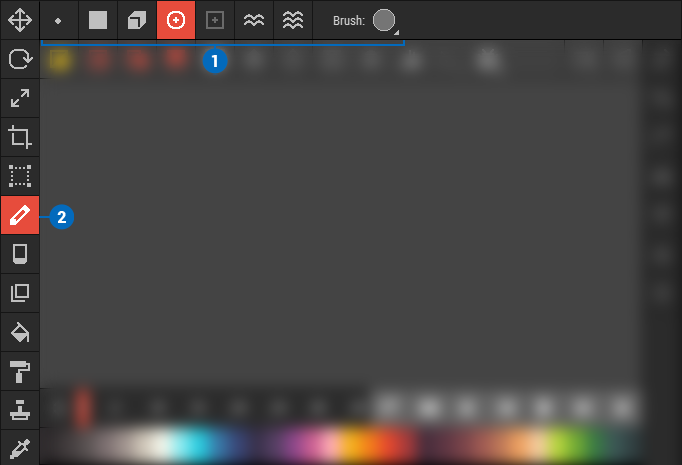 🔺 Figure 1 The Tool Options Bar 1️⃣ is located at the top of the Scene View. It displays the options for the the active tool 2️⃣.
Transformation Tool Options
| Icon | Name | Description |
|---|---|---|
 | Use Center Pivot Position | Toggles Gizmo position between object center and custom pivot. |
 | Use Global Space | Toggles transformation space between local and global. |
 | Toggle Pivot Edit Mode | Toggles Pivot Edit mode on and off. |
 | Snap to Bounding Box | Snap position to bounding box. |
 | Snap to Base Grid | Snap position to base grid. |
 | Round Position | Toggles rounding of position values. |
Editing Tool Options
| Icon | Name | Description |
|---|---|---|
 | Point Mode | Allows freehand editing and can also edit straight lines between two points. |
 | Rectangle Mode | Edits voxels/pixels within a rectangular area of a voxel/pixel grid. |
 | Box Mode | Edits voxels within a cuboid area of a voxel grid. |
 | Area Mode | Edits voxels/pixels within a retangular selection area dragged on screen. |
 | Brush Mode | Edits voxels/pixels marked by brush strokes. |
 | 2D Flood Mode | Edits similar voxels/pixels on a 2D plane. |
 | 3D Flood Mode | Edits similar voxels across an entire voxel grid. |
 | Contiguous | Toggles continuous flooding for Flood 2D/3D Mode. |
 | Brush Size | Sets the brush size for Brush Mode. |
 | Shape | Sets the shape for Rectangle Mode. |
 | Shape | Sets the shape for Box Mode. |
Stamp Tool Options
| Icon | Name | Description |
|---|---|---|
 | Rotate | Sets the rotation of the Mini in 90° increments. |
 | Flip Horizontally | Flips the Mini horizontally. |
 | Flip Vertically | Flips the Mini vertically. |
 | Repeat Horizontally | Toggles horizontal pattern repeat. |
 | Repeat Vertically | Toggles vertical pattern repeat. |
 | Elevate | Toggles whether the Mini's height information is used. |