Editing Object Properties
Managing and modifying the properties of objects is a fundamental aspect of your workflow. The Inspector is the primary tool for editing these properties, providing a comprehensive view of the attributes associated with the active object.
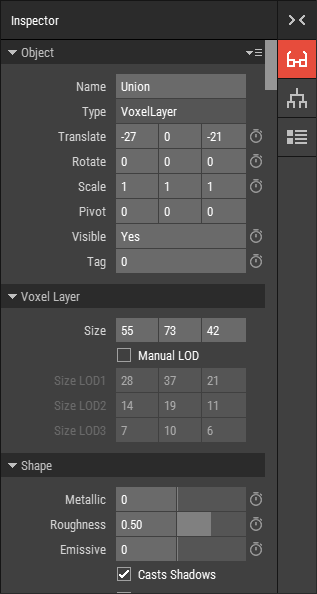 🔺 Figure 1 The Inspector Panel.
Accessing the Inspector
To edit object properties, open the Inpector. This panel lists all the properties of the currently active object. If multiple objects are selected, the active object is the first one in the selection order.
Steps to Modify Object Properties
- Select the object(s) you wish to edit.
- Navigate to the Inspector panel to view the properties of the active object.
- Adjust the values in the Inspector. The changes will be reflected in real-time.
Any changes you make in the Inspector will apply to all selected objects, provided they share the same properties as the active object.
Common Editable Properties
In the Inspector, you can modify various properties, including but not limited to:
- Position: Adjust the object's location in the 3D space.
- Rotation: Change the orientation of the object.
- Scale: Resize the object uniformly or along specific axes.
Each type of object in Foxel has its own set of available properties. For more information on the specific properties associated with different types of objects, see the Types of Objects section of the manual.
Input Field Types
The Inspector features various input field types, each designed for specific property adjustments. For detailed information on how to use these input fields, refer to the Inspector section of the manual.