Shared Look-Up Tables
Look-Up Tables (LUTs) are used for color grading in Foxel, allowing you to enhance the visual quality of your projects. For more information, check out the Color Grading Guide.
Managing Look-Up Tables
LUTs are managed through the LUTs Tab of the Visual Resources Panel.
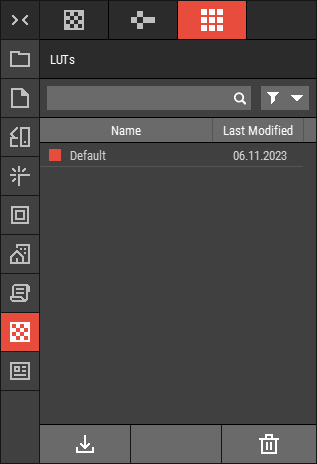 🔺 Figure 1 The LUTs Tab.
File Location
All LUT files are stored in the following directory:Documents\Foxel\Shared\LUTs
File Format
LUTs are saved in a proprietary format with the extension .fxllut, which is optimized for fast loading and efficient upload to the GPU.
Creating a Look-Up Table
To create a custom LUT, follow these steps:
- Download the neutral LUT.
- Adjust the colors in your preferred image editor.
- Import the adjusted image as described below.
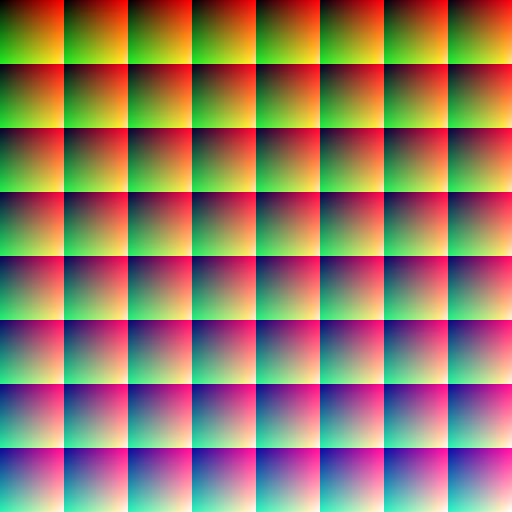 🔺 Figure 2: Example of a Neutral LUT.
Importing Look-Up Tables
To import LUTs into Foxel, follow these steps:
- Click on the Import button.

- Select the LUT file you want to import and click Open.
Important Note
The imported image size must be 512x512 pixels.
Supported File Formats for Import
| File Format | File Extension |
|---|---|
| Image | .png, .bmp, .jpg, .tiff |
Exporting Look-Up Tables
To export LUTs, follow these steps:
- Select the LUTs you want to export.
- Right-click on your selection.
- Choose Export from the context menu.
- If you are exporting a single file, you will be prompted to enter a file name.
- If you are exporting multiple files, you will be prompted to select a destination folder. In this case, the default file type will be used for exporting.
Supported File Formats for Export
| File Format | File Extension |
|---|---|
| Image | .png, .bmp, .jpg, .tiff |