Asset Properties
Asset properties include meta information as well as additional settings specific to the asset type. They are divided into five sections: Attributes, Animation, Default Scan Box, Description, and Copyright.
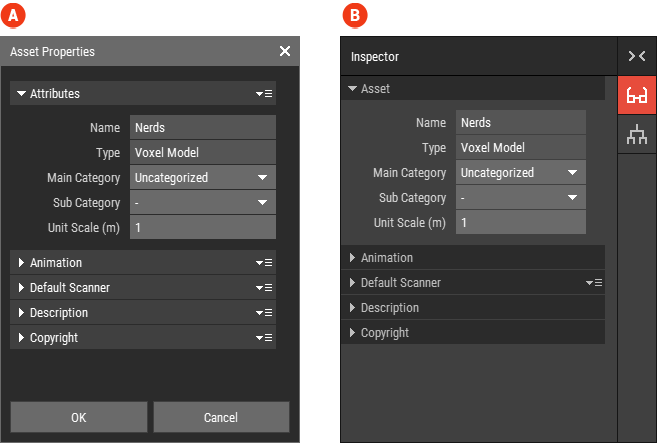 🔺 Figure 1 Asset properties in the Asset Properties dialog 🅰️ and the Inspector 🅱️.
To view or edit the properties of the active asset:
- Choose Asset > Properties to open the Asset Properties dialog.
or
- Deselect all objects.
- Open the Inspector Panel.
Attribute settings
| Name | The unique name of the asset. |
| Main category and subcategory | These two drop-downs specify the category of the asset. Assets can be filtered by category in the Assets Panel. |
| Unit scale | This setting determines the scale of a unit. For example, if you are using the metric system and set the unit scale to 0.1, a voxel will have a size of 0.1m or 10cm. |
| Size | Only Heightmaps have the additional size property, which specifies the size of the Heightmap in pixels. |
Animation settings
This section is not available for Heightmaps.
| FPS | This setting specifies the frames per second for animation playback. |
Default Scan Box settings
The settings in this section determine the properties of the default Scan Box used for Referencing Assets. The default Scan Box is only available for Voxel Scenes and Mesh Assets.
| Position | This setting specifies the world position of the default Scan Box. |
| Size | This setting specifies the size of the default Scan Box in units. |
| Origin | This setting specifies the local origin of the default Scan Box. |
| Frame | This setting specifies which frame to rasterize. |
Description and Copyright settings
Use the fields in the Description and Copyright sections to provide additional meta information about the asset. This information does not affect the actual behavior of the asset. It can be extracted and used to generate an HTML page. It is also automatically transferred to Prefabs created from the asset.