Skip to content

Overlay

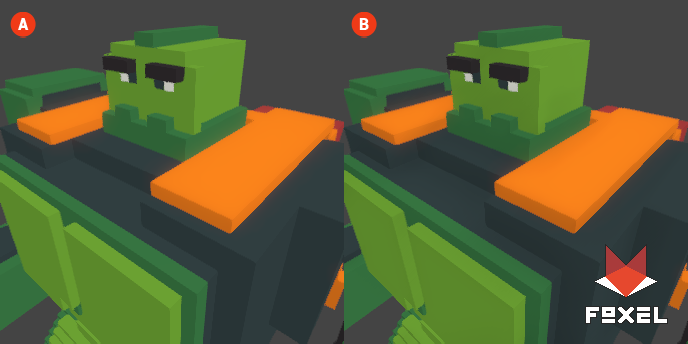
The Overlay effect allows you to apply a texture directly onto the rendered image, making it useful for adding logos, watermarks, or other graphical elements to your voxel scenes. Unlike the Lens Texture effect, the Overlay texture is rendered in its original size and is not scaled, providing precise control over how the overlay appears in the final output.

When the Overlay effect is enabled, the selected texture will be applied on top of the rendered scene, allowing for creative enhancements and branding opportunities.

Overlay 🔺 Figure 1 🅰️ Without Overlay. 🅱️ With Overlay Enabled.

Settings

  • Texture: This setting allows you to select a shared texture to overlay on the rendered image.

  • Align: This setting determines the alignment of the overlay texture on the screen. Options include positions such as center, bottom left, top right, and more, allowing you to place the overlay precisely where you want it.

  • Offset X: This setting allows you to adjust the horizontal position of the overlay texture. Positive values will move the texture to the right, while negative values will move it to the left.

  • Offset Y: This setting allows you to adjust the vertical position of the overlay texture. Positive values will move the texture down, while negative values will move it up.

  • Opacity: This setting controls the transparency of the overlay texture. A higher opacity will make the texture more visible, while a lower opacity will create a more subtle effect.