Asset Properties
Asset properties define settings and metadata for the currently open asset.
These properties affect the asset as a whole, unlike object properties, which apply only to individual objects inside the asset. Use asset properties to manage general asset information, playback settings, and asset-level options such as the default Scan Box for references.
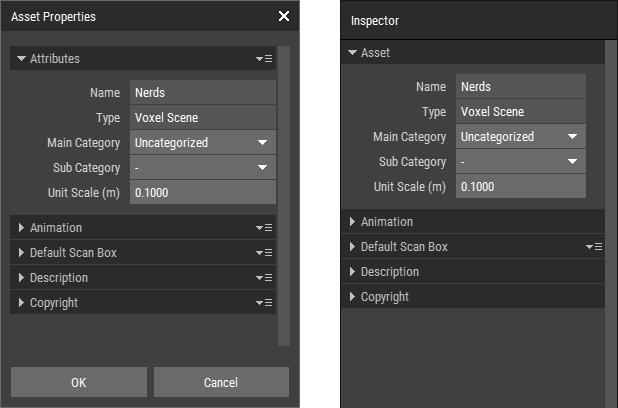 🔺 Figure 1: Asset properties in the Asset Properties dialog on the left and the Inspector on the right.
Opening Asset Properties
You can view and edit the properties of the currently open asset in two ways:
- Choose Asset > Properties to open the Asset Properties dialog.
or
- Deselect all objects in the current asset.
- Open the Inspector.
When no object is selected, the Inspector shows the properties of the current asset.
General Properties
These properties describe the asset itself.
| Name | The name of the asset. |
| Main Category / Subcategory | Defines how the asset is categorized in the Assets page. You can use these fields to organize and filter assets more easily. |
| Unit Scale | Defines the size of one unit in the asset. For example, if the unit scale is set to 0.1 in a metric workflow, one voxel corresponds to 0.1 m or 10 cm. |
| Size | Only available for Heightmaps. Defines the size of the Heightmap in pixels. |
Animation Properties
This section is not available for Heightmaps.
| FPS | The playback speed of the asset in frames per second. |
Default Scan Box Properties
These settings define the default Scan Box used when referencing assets.
The default Scan Box is available only for Voxel Scenes and Mesh Assets. It defines which area of the source asset is used by default when a reference is created.
| Position | The world position of the default Scan Box. |
| Size | The size of the default Scan Box in units. |
| Origin | The local origin of the default Scan Box. |
| Frame | The frame used for rasterization. |
Description and Copyright
The Description and Copyright sections store additional metadata for the asset.
This information does not change how the asset behaves in Foxel. It can be used for documentation, asset management, or export-related workflows. It is also transferred automatically when creating a Prefab from the asset.
Related Topics
- Projects and Assets Overview: Learn how assets fit into the project structure.
- Creating an Asset: Learn how new assets are created.
- References: Learn how referenced assets use the default Scan Box.
- Inspector: Edit asset properties from the workspace.