Grid Duplicate
Grid Duplicate creates multiple copies of the selected object or objects in a grid layout.
This is useful for building regular arrangements such as tiled surfaces, rows of props, or structured object arrays.
Using Grid Duplicate
To create a grid of duplicates:
- Select the object or objects you want to duplicate.
- Choose Object > Duplicate > Grid Duplicate.
- In the dialog, set the grid options.
- Click Preview to preview the result, or click OK to create the duplicates.
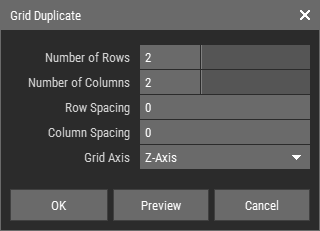 🔺 Figure 1: Grid Duplicate dialog.
Options
| Number of Rows | Defines how many rows are created. |
| Number of Columns | Defines how many columns are created. |
| Row Spacing | Defines the distance between rows. |
| Column Spacing | Defines the distance between columns. |
| Grid Axis | Defines the plane in which the grid is created. |
INFO
The original object is included in the result and occupies row 0, column 0.