Scaling 3D Objects to Fit
Scale to Fit scales the selected object or objects to a target size.
This is useful when you want an object to match specific dimensions or fit into a defined space.
Using Scale to Fit
To scale objects to a target size:
- Select the object or objects you want to scale.
- Choose Object > Transform > Scale to Fit.
- In the dialog, enter the target size.
- Click OK.
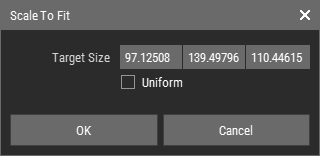 🔺 Figure 1: Scale to Fit dialog.
Options
| Target Size | Defines the desired size of the selected object or objects. The initial value is based on the current bounding box size of the selection. |
| Uniform Scaling | Keeps the proportions of the object while scaling. When disabled, each axis can be scaled independently. |