Starting a New Voxel Layer
A new Voxel Layer gives you a voxel grid that you can edit directly.
How to Use It
- Open a Voxel Scene or Voxel Movie.
- Create a new Voxel Layer.
- Adjust the settings in the creation dialog.
- Confirm the dialog to add the layer to the scene.
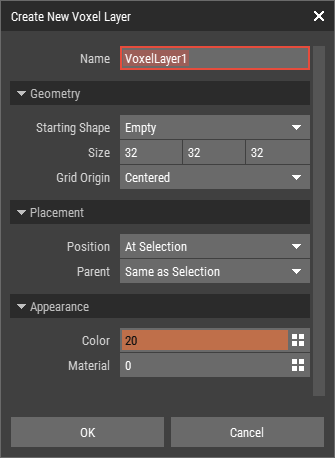
Geometry
The following options are specific to creating a Voxel Layer:
- Starting Shape: Sets the initial voxel content of the layer. You can start with an empty grid or with a prefilled shape such as Box, Sphere, Pyramid, Cylinder, Cone, or Wedge.
- Size: Sets the size of the voxel grid in voxels.
- Grid Origin: Sets how the voxel grid is positioned relative to the object origin.
- Centered places the grid around the object position.
- Corner places the grid so it grows from the object position toward positive
X,Y, andZ.
Appearance
These options are used for the starting shape:
- Color: Sets the initial color of the starting shape.
- Material: Sets the initial material of the starting shape.
Notes
- If Starting Shape is set to Empty, the layer is created without any voxels.
- Color and Material only affect the starting shape.
- The Position and Parent options are explained in Creating Objects.
Practical Advice
Start with a grid size that comfortably fits your first blockout.
You can resize the layer later, but choosing a sensible starting size makes early editing easier.