Skip to content

Color Correction

The Color Correction effect allows you to adjust the overall color balance and tonal quality of your voxel scenes. This effect is essential for achieving the desired mood and atmosphere, enabling you to fine-tune the colors to match your artistic vision. By manipulating various parameters, you can enhance the vibrancy, contrast, and overall appearance of your visuals.

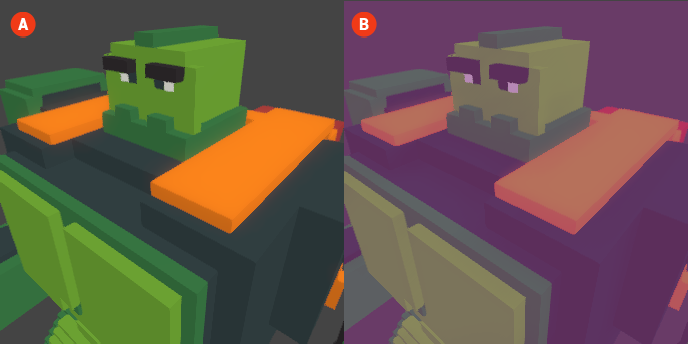
When the Color Correction effect is enabled, you can make precise adjustments to the colors in your scene, ensuring that they align with your creative intent.

Color Correction 🔺 Figure 1 🅰️ Without Color Correction. 🅱️ With Color Correction Enabled.

Settings

  • Hue: This setting allows you to shift the overall hue of the colors in your scene. Adjusting the hue can create different color palettes and alter the mood of the visuals.

  • Saturation: This setting controls the intensity of the colors. A higher saturation will make the colors more vivid and vibrant, while a lower saturation will create a more muted and subdued appearance.

  • Brightness: This setting adjusts the overall brightness of the scene. Increasing the brightness will lighten the colors, while decreasing it will darken them, allowing for better visibility and contrast.

  • Contrast: This setting determines the difference between the lightest and darkest areas of the scene. A higher contrast will create more pronounced differences, making the image appear more dynamic, while a lower contrast will result in a flatter appearance.

  • Tint: This setting allows you to apply a color tint to the entire scene. You can choose a specific color to subtly influence the overall tone of the visuals.

  • Tint Intensity: This setting controls the strength of the tint effect. A higher intensity will result in a more noticeable tint, while a lower intensity will create a more subtle influence on the colors.