Timeline
The Timeline is located below the Scene View and is an essential tool for editing keyframes and managing playback of animations. It consists of four main parts: the Time Ruler, Channel List, Playback Options, and Playback Controls.
For more information on animation, see the Animation section.
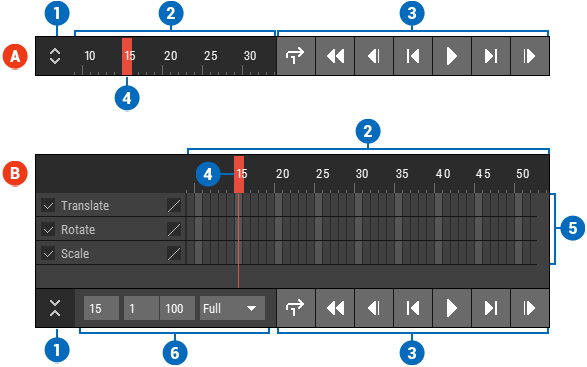
🔺 Figure 1 The Timeline can be collapsed with the button 1️⃣ on the far left. The main components are the Timeruler 2️⃣ with the red playhead 4️⃣, the Channel List 5️⃣ which is hidden when the Timeline is collapsed, the Playback Controls 3️⃣ and the Playback Options 6️⃣.
Main Components
Time Ruler
The Time Ruler displays the range of frames in your animation and allows you to move the playhead to different points in time. This feature is crucial for precise editing and timing adjustments.
Channel List
The Channel List provides a comprehensive overview of all properties of the active object that can be animated. It enables you to select and move frames, making it easier to manage your animation sequences.
You can collapse the Channel List to free up space in the Timeline. To do this, click on the collapse button or use the default shortcut 6.
Playback Controls
The Playback Controls consist of typical buttons that allow you to control the playback of your animation. These include:
- Loop: Repeats the animation continuously.
- Rewind: Returns the playhead to the beginning of the animation.
- Start/Stop: Begins or halts playback.
- Step Frame: Advances the playhead by one frame.
- Step Key: Moves the playhead to the next keyframe.
Playback Options
The Playback Options provide settings for customizing your playback experience. These include:
- Current Frame: Displays the frame currently being viewed.
- Playback Range: Defines the range of frames to be played back.
- Playback Speed: Adjusts the speed at which the animation plays.