Toolbar
The Toolbar is located next to the Scene View and provides access to Foxel’s main editing tools.
The Toolbar also includes the tool options for the active tool. These options are displayed below the tool buttons and change depending on which tool is selected. Additional voxel grid options may also appear near the bottom of the Toolbar for voxel-based assets.
At the bottom of the Toolbar, you will find buttons showing the currently active color and material. Click these buttons to select a different color or material.
For detailed information about individual tools and how they are used, see the Modeling section.
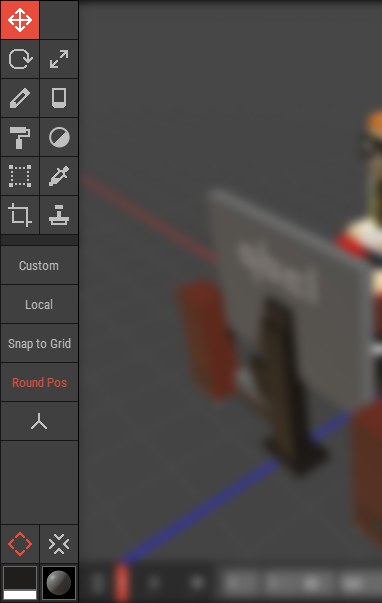 🔺 Figure 1: The Toolbar.
Overview
The Toolbar contains three main parts:
- Tool Buttons at the top for selecting the active tool
- Tool Options below, which change depending on the selected tool
- Voxel Grid Options and Active Color and Material buttons at the bottom
Available Tools
| Icon | Name | Description |
|---|---|---|
 | Move Tool | Moves selected objects, voxels, and pixels. |
 | Rotate Tool | Rotates selected objects and voxels. |
 | Scale Tool | Scales selected objects and voxels. |
 | Crop Tool | Removes sections of a voxel grid. |
 | Select Tool | Selects voxels and pixels. |
 | Draw Tool | Draws voxels and pixels. |
 | Erase Tool | Removes existing voxels and pixels. |
 | Paint Tool | Applies a color to voxels and pixels. |
 | Material Tool | Applies a material to voxels and pixels. |
 | Stamp Tool | Places and repeats predefined patterns. |
 | Eyedropper Tool | Samples and selects colors and materials. |
INFO
Not all tools are available for all asset types. For example, the Rotate Tool is not available for Heightmaps.
Tool Options
The options shown below the tool buttons depend on the active tool. Some tools provide only a few options, while others provide modes, toggles, and additional settings.
Transformation Tool Options
The transformation tools, such as Move, Rotate, and Scale, can show options like the following:
| Icon | Name | Description |
|---|---|---|
| Custom/Center | Switches the gizmo position between the object center and the custom pivot. | |
| Local/Global | Switches the transformation space between local and global. | |
 | Toggle Pivot Edit Mode | Enables or disables pivot editing. |
| Snap to Box/Grid | Switches position snapping between the bounding box and the base grid. | |
| Round Position | Toggles rounding of position values after moving. |
Editing Tool Options
Editing tools such as Draw, Erase, Paint, and Select can provide different editing modes and related options.
| Icon | Name | Description |
|---|---|---|
 | Point Mode | Allows freehand editing and can also edit straight lines between two points. |
 | Rectangle Mode | Edits voxels or pixels within a rectangular area on a voxel or pixel grid. |
 | Box Mode | Edits voxels within a cuboid area of a voxel grid. |
 | Area Mode | Edits voxels or pixels inside a rectangular selection dragged on screen. |
 | Brush Mode | Edits voxels or pixels using brush strokes. |
 | 2D Flood Mode | Edits similar voxels or pixels on a 2D plane. |
 | 3D Flood Mode | Edits similar voxels across an entire voxel grid. |
| Contiguous | Toggles continuous flooding for 2D Flood Mode and 3D Flood Mode. | |
 | Brush Size | Sets the brush size for Brush Mode. |
 | Shape | Sets the shape used by Rectangle Mode. |
 | Shape | Sets the shape used by Box Mode. |
Stamp Tool Options
The Stamp Tool provides options for transforming and repeating the selected Mini.
| Icon | Name | Description |
|---|---|---|
 | Rotate | Sets the rotation of the mini in 90° increments. |
 | Flip Horizontally | Flips the mini horizontally. |
 | Flip Vertically | Flips the mini vertically. |
 | Repeat Horizontally | Toggles horizontal pattern repeat. |
 | Repeat Vertically | Toggles vertical pattern repeat. |
 | Elevate | Toggles whether the mini's height information is used. |
Voxel Grid Options
When the open asset is a Voxel Scene or Voxel Movie, additional voxel grid options are shown above the active color and material buttons.
These options are always available for voxel-based assets, regardless of the selected tool.
| Icon | Name | Description |
|---|---|---|
 | Auto Extend | Automatically expands the voxel grid when a tool action requires more space to complete. |
 | Auto Optimize Size (Safe) | Automatically shrinks the voxel grid after a tool action to the minimum required size. The grid size will not be reduced below 8 × 8 × 8. |