Skip to content

Advanced Duplicate โ€‹

The Advanced Duplicate feature allows you to create multiple copies of an object while applying specific transformations such as translation, rotation, and scaling. This functionality is essential for efficiently populating your scenes with variations of objects.

How to Use Advanced Duplicate โ€‹

To duplicate an object with transformations, follow these steps:

  1. Select the object(s) you wish to duplicate.

  2. Navigate to Object > Duplicate > Advanced Duplicate in the menu.

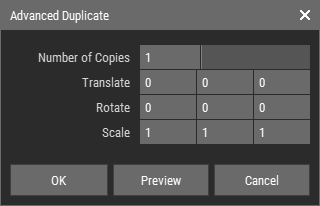
  3. A dialog will appear with the following input fields: Advanced Duplicate Dialog ๐Ÿ”บ Figure 1: Advanced Duplicate Dialog Box

    • Number of Copies: Input the total number of duplicates you want to create.
    • Translate: Enter the values for the X, Y, and Z axes to determine how far apart each duplicate will be positioned relative to the original object.
    • Rotate: Specify the rotation angles for the X, Y, and Z axes to orient each duplicate relative to the original object.
    • Scale: Define the scale factors for the X, Y, and Z axes to adjust the size of each duplicate.
  4. Click Preview to visualize your settings before applying them, or click OK to generate the duplicates. Each copy will be created according to the specified transformations.

Note

The pivot point of the object plays a crucial role in how the Scale and Rotate values are applied. See Understanding Pivot Points.

Example Use Case: Creating a Spiral Staircase โ€‹

One practical application of the "Advanced Duplicate" feature is in designing a spiral staircase. Hereโ€™s how you can achieve this:

  1. Create the Stair Step: Start by modeling a single stair step that will serve as the base for your staircase.
  2. Set Up Transformations:
    • Number of Copies: Enter the number of steps you want in your staircase (e.g., 12 steps).
    • Translate: Set the translation values to move each step vertically (along the Y-axis) to create the height of the staircase.
    • Rotate: Specify a rotation angle around the vertical axis (Z-axis) to create the spiral effect. For example, a rotation of 30 degrees for each step will create a smooth spiral.
  3. Generate the Staircase: Click OK to create the staircase. Each step will be positioned and rotated according to your settings, resulting in a complete spiral staircase.

This method allows you to efficiently create complex structures like a spiral staircase with minimal effort, ensuring that each step is perfectly aligned and spaced.