Creating Prefabs from Selection
Prefabs can be created from the current object selection in the scene.
The generated Prefab is added to the currently open Prefab Package on the Prefabs page.
Creating a Prefab
To create a Prefab from selected objects:
- Select one or more objects in the scene.
- Make sure the correct Prefab Package is open.
- Create the Prefab in one of the following ways:
- open the Prefabs page and click the + button on the right side
- use Object > Create Prefab from Selection
- Configure the Prefab in the Create Prefab from Selection dialog.
- Click OK.
Using Object > Create Prefab from Selection lets you stay on the Scene page and use the hierarchy to select objects.
Foxel generates voxel data from the selected objects and stores the result as a new Prefab in the open package.
Create Prefab from Selection Dialog
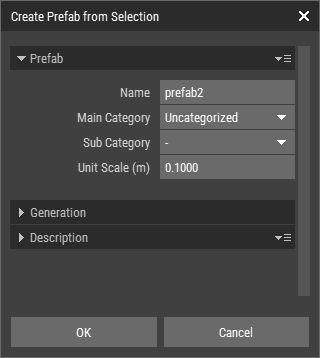 🔺 Figure 1: Create Prefab from Selection Dialog.
The Create Prefab from Selection dialog contains the following sections:
- Prefab
- Generation
- Description
Category, unit scale, and description fields are initialized from the corresponding values of the currently open asset. You can adjust these values before creating the Prefab.
Prefab
The Prefab section defines the basic Prefab properties.
| Property | Description |
|---|---|
| Name | The internal name of the Prefab. |
| Main Category | The main category used to organize the Prefab. |
| Sub Category | The sub category used to organize the Prefab. |
| Unit Scale (m) | The real-world scale of one unit, in meters. |
Generation
The Generation section controls how voxel data is generated from the selected objects.
| Property | Description |
|---|---|
| Include Descendants | Includes child objects of the selected objects when generating the Prefab. |
| Grid Origin | Defines where the generated Prefab is anchored inside its voxel grid. |
| Size | Shows the generated voxel size. This value is read-only and updates when generation options change. |
Include Descendants
When Include Descendants is enabled, Foxel also uses the descendants of the selected objects when generating the Prefab.
Disable this option if only the selected objects themselves should be used.
Grid Origin
The Grid Origin setting defines the anchor position of the generated Prefab inside its voxel grid.
Available origins are:
| Origin | Description |
|---|---|
| Center | Places the origin at the center of the generated grid. |
| Center Right | Places the origin at the center of the right side. |
| Center Left | Places the origin at the center of the left side. |
| Center Bottom | Places the origin at the center of the bottom side. |
| Center Top | Places the origin at the center of the top side. |
| Center Back | Places the origin at the center of the back side. |
| Center Front | Places the origin at the center of the front side. |
Use this setting to control how the Prefab is positioned when it is placed later.
Description
The Description section contains optional descriptive metadata.
The fields in this section are initialized from the corresponding description fields of the open asset.
| Property | Description |
|---|---|
| Title | A display title for the Prefab. |
| Headline | A short headline or summary. |
| Description | A longer description of the Prefab. |
| Keywords | Search keywords associated with the Prefab. |
Empty Voxel Data
If the selected objects do not generate any voxel data, the Prefab is not created.
This can happen when:
- the selected objects contain no voxel-generating data
- only parent objects are selected, but their descendants contain the relevant data
- the selected objects are outside the generated voxel area
If this happens, enable Include Descendants or adjust the object selection, then try again.