Preferences
Use the preferences to customize the behavior of Foxel. To access the preferences navigate to Edit > Preferences.
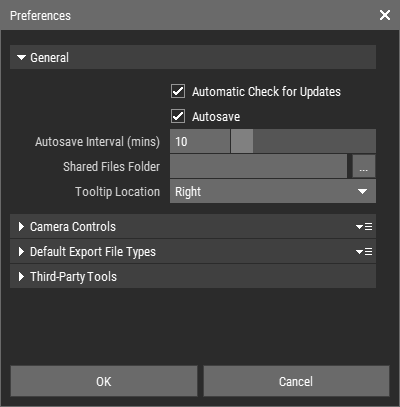 🔺 Figure 1: The Preferences dialog box.
General Settings
| Setting | Function |
|---|---|
| Automatic Check for Updates | Enable this setting to automatically check for updates at startup. |
| Autosave | Enable this setting to automatically save your active asset every x minutes. If Foxel terminates unexpectedly, you can restore your asset from the autosave the next time you start Foxel. |
| Autosave Interval | This setting determines how many minutes should elapse between autosaves. |
| Shared Files Folder | This setting determines the folder in which shared files are stored. Changing this setting will create new subfolders for the different types of shared files if they are not available. |
| Tooltip Location | Use this setting to position the tooltip to the left or right of your cursor. |
Camera Controls
The settings in this section determine how the camera behaves when you use the mouse and/or keyboard to navigate through the Scene View.
| Setting | Function |
|---|---|
| Orbit Speed | This setting determines the speed at which the camera orbits around its target for orbital camera controls. |
| Dolly/Zoom Speed | This setting determines the dolly and zoom speed for orbital camera controls. |
| Truck Speed | This setting determines the truck speed for orbital and first-person camera controls. |
| Look Around Speed | This setting determines the speed at which you look around for first-person camera controls and flythrough mode. |
| Movement Speed | This setting determines the speed at which you move forward and backward in flythrough mode. |
| Strafe Speed | This setting determines the speed at which you move sideways and up/down in flythrough mode. |
| Mouse Wheel Speed | This setting determines the movement speed for first-person camera controls and the dolly/zoom speed for orbital camera controls when using the mouse wheel. |
| Animation Speed | This setting determines the speed at which the camera moves to the new position when framing objects. |
| Flip Vertical Axis | Enable this setting to look down instead of up and vice versa when using first-person controls or in flythrough mode. |
Default Export File Types
Use the following settings to specify which file types are used for the batch export of multiple selected files.
| Setting | Function |
|---|---|
| Voxel Scene | This setting determines the file type for the batch export of Voxel Scenes. |
| Color Palette | This setting determines the file type for the batch export of Color Palettes. |
| Material Set | This setting determines the file type for the batch export of Material Sets. |
| Mini Set | This setting determines the file type for the batch export of Mini Sets. |
| Texture | This setting determines the file type for the batch export of textures. |
| LUT | This setting determines the file type for the batch export of look-up tables. |
| Cubemap | This setting determines the file type for the batch export of cubemaps. |
Third-Party Tools
| Setting | Function |
|---|---|
| Path to MagicaVoxel | This setting defines the path to the MagicaVoxel executable file. |
| Path to Script Editor | This setting specifies the path to the executable file of a text editor used to edit scripts. |