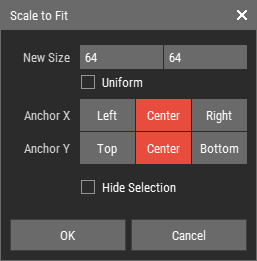
Scaling to Fit (Pixel)
The Scale to Fit operation allows you to adjust the dimensions of the selected Pixel Layers so that the contained pixels fit within the new pixel grid size. This operation is useful for ensuring that your pixel models are appropriately scaled to meet specific requirements or to create different variations of your designs.
Note from Dev
The Scale to Fit feature currently does not work on Pixel References. This functionality will be added in a future update.
Steps to Scale to Fit
- Select pixels or Pixel Layers.
- Navigate to Pixel > Transform > Scale to Fit.
- Adjust the scale parameters in the Scale to Fit dialog.
- Click OK to apply the scaling to the selected Pixel Layers.
Scale to Fit Dialog Parameters

- New Size: Enter the new dimensions for the pixel grid.
- Uniform: Check this option to maintain the aspect ratio while scaling.
- Anchor X/Y: The six anchor buttons determine the point from which the scaling occurs, organized by axis.
- Hide Selection: Enable this option to toggle the highlighting of selected voxels in 3D mode, enhancing your ability to visualize the changes effectively.