Radial Distribute
Radial Distribute arranges the selected objects in a circular pattern.
It is useful when you want to place objects evenly around a center point.
Using Radial Distribute
To distribute objects radially:
- Select the objects you want to distribute.
- Choose Object > Distribute > Radial Distribute.
- In the dialog, set the distribution options.
- Click OK.
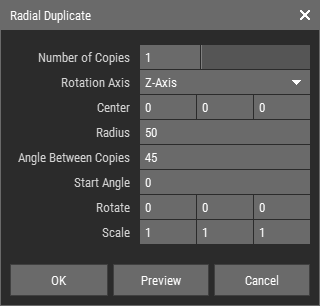 🔺 Figure 1: Radial Distribute dialog.
Options
| Radius | Defines the distance from the center point to each object. |
| Angle Between Objects | Defines the angular spacing between objects. |
| Start Angle | Defines the angle of the first object. |
| Rotate | Applies an additional rotation to each object during distribution. |
| Scale | Applies additional scaling to each object during distribution. |
INFO
Rotation and scaling are applied relative to each object's pivot. For more information, see Understanding Pivot Points.