Working with the Color Palette
Colors are managed directly in the Color Palette on the Surface page of the workspace. For an overview of workspace pages, see Pages.
Opening the Color Palette
To work with colors, open the Surface page and use the Color Palette panel on the left side.
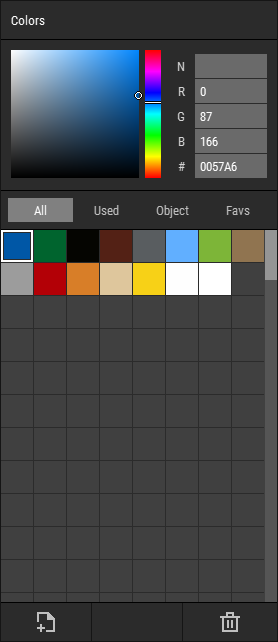 🔺 Figure 1: The Color Palette panel.
Selecting Colors
Click a color to make it the active color.
You can also select multiple colors for palette operations:
- Hold
Ctrlto add or remove individual colors from the selection. - Hold
Shiftto select a range of colors.
Editing a Color
Only the active color can be edited.
You can adjust the color visually, enter exact values such as RGB or HEX, and assign a name. Color names are shown as tooltips wherever the palette is displayed.
Adding and Deleting Colors
You can add new colors to the palette and delete selected colors.
New colors are added to the next available empty slot. If the palette is full, no additional colors can be added until space is available.
Importing Colors
You can import colors from external files into the current asset's Color Palette.
Foxel supports importing colors from palette files, images, and voxel assets. Colors that are already present in the palette are skipped. New colors are added automatically until the palette is full.
Creating Gradients
To create a gradient, select exactly two colors and choose Create Gradient from the context menu.
Foxel fills the colors between the selected entries with a smooth transition.
Saving and Loading Shared Color Palettes
The Color Palette context menu includes Save and Load commands for working with Foxel's shared color palette files.
- Save stores the current Color Palette as a shared color palette file.
- Load replaces the current Color Palette with a shared color palette file.
Shared color palettes can be reused across different assets and projects. They can also be selected when creating a new asset. For more information, see Shared Color Palettes.
Sorting and Organizing Colors
The context menu provides several commands for arranging and managing the palette:
- Sort rearranges the palette to group visually similar colors together.
- Organize removes gaps and packs colors more tightly in the palette view.
- Clear removes all colors from the palette.
- Export Selected saves the selected colors to a file.
When colors are sorted or organized, Foxel remaps the affected color indices internally so the appearance of the asset stays unchanged.