Creating Assets
This section explains how to create a new asset in Foxel.
Creating a New Asset
- Choose File > New Asset.
- Select the asset type you want to create.
- Fill in the fields in the New Asset dialog as needed.
- Click OK.
The new asset file is created and opened immediately.
New Asset Dialog
The New Asset dialog lets you define the basic properties of the new asset.
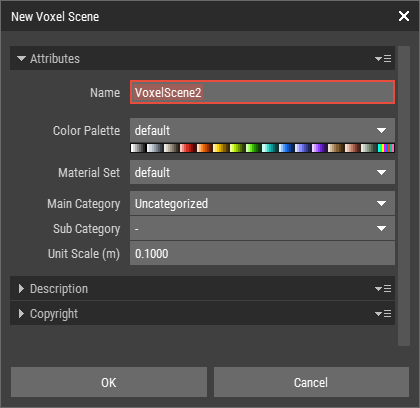 🔺 Figure 1: New Asset dialog.
Attribute Parameters
| Name | The name of the new asset. Names must follow the Naming Rules. |
| Color Palette | Defines the color palette used by the asset. |
| Material Set | Defines the material set used by the asset. |
| Main Category / Subcategory | These fields define how the asset is categorized. You can use them to organize and filter assets in the Assets panel. |
| Unit Scale | Defines the size of one unit in the asset. For example, if the unit scale is set to 0.1 in a metric workflow, one voxel corresponds to 0.1 m or 10 cm. |
| Size | Only available for Heightmaps. This defines the size of the Heightmap in pixels. |
Description and Copyright Parameters
The Description and Copyright sections let you store additional metadata for the asset.
This information does not affect how the asset behaves in Foxel. It can be used for documentation or export-related workflows and is also transferred automatically when creating a Prefab from the asset.
All copyright fields are pre-filled with the copyright information from the current project. For more information, see Project Properties.