Asset Import Settings
Import Settings let you control how voxel files, mesh files, and images are imported into Foxel.
You can use different settings profiles for different import workflows.
Opening Import Settings
To open the Import Settings dialog:
- Open the File menu.
- Click the button next to Import.
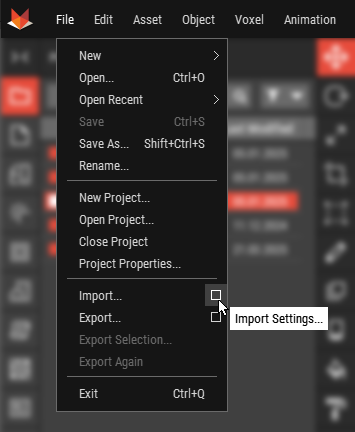
Import Settings Dialog
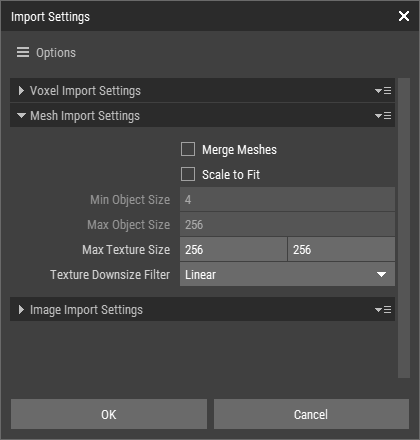
The Import Settings dialog contains separate settings for voxel files, mesh files, and images.
Voxel Import Settings
| Max Voxel Layer Size | Defines the maximum size of created Voxel Layers. If an imported object exceeds this size, it is split into chunks. |
| Group Chunks | If chunking is required, this groups the created chunks together. |
Mesh Import Settings
| Merge Meshes | Combines multiple meshes into a single mesh during import. |
| Scale to Fit | Scales the imported object to fit within the defined size range. |
| Min Object Size | The minimum target size used by Scale to Fit. |
| Max Object Size | The maximum target size used by Scale to Fit. |
| Max Texture Size | Defines the maximum allowed texture size during import. |
| Texture Downsize Filter | Defines how oversized textures are downsized. |
Texture Downsize Filter Options
- Linear: Produces smoother results.
- Nearest Neighbor: Preserves a harder, more pixelated look.
Image Import Settings
| Max Pixel Layer Size | Defines the maximum size of created Pixel Layers. |
| Oversized Images | Defines how images larger than the allowed size are handled. |
Oversized Image Options
- Downsize (Linear): Downsizes the image using linear filtering.
- Downsize (Nearest Neighbor): Downsizes the image using nearest neighbor filtering.
- Crop: Crops the image to fit the allowed size.
Using Import Settings Profiles
Foxel supports multiple import settings profiles.
You can use import settings profiles to quickly switch between different import configurations for different workflows.
The Options menu at the top of the Import Settings dialog includes the following commands:
- Load Profile: Loads settings from an Import Settings Profile.
- Save Profile: Saves the current settings to an Import Settings Profile.
- Reset To Default: Restores the default import settings.
For more information about Import Settings Profiles, see Import Settings Profiles.