Action Bar
The Action Bar provides a streamlined way to quickly access actions found in the main menu. The buttons displayed vary depending on the open asset.
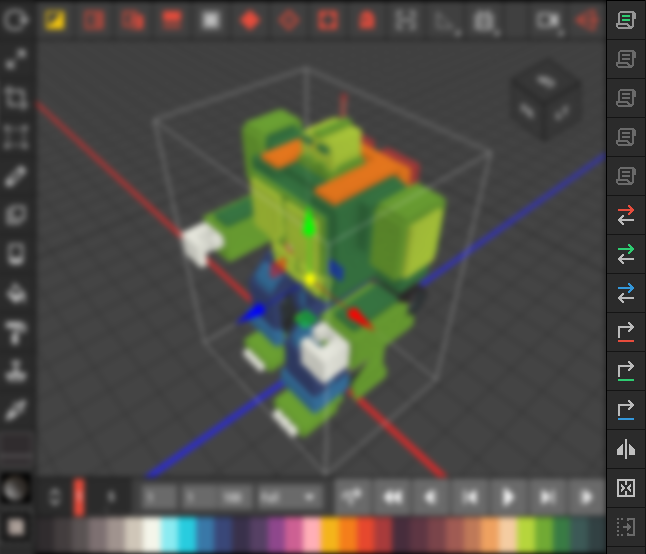 🔺 Figure 1: The Action Bar is located on the right side of the Scene View.
Script Buttons
At the top of the Action Bar, there are five colored script buttons. You can assign a script to each button and execute the script with a simple click. If a button is greyed out, it indicates that no script is assigned to it.
 🔺 Figure 2: The five colored script buttons.
For more information on writing, assigning, and executing scripts, see Scripting.
Other Available Actions
| Button | Action | Asset Type |
|---|---|---|
 | Flip selection along X-axis | Voxel Scene, Voxel Movie |
 | Flip selection along Y-axis | Voxel Scene, Voxel Movie |
 | Flip selection along Z-axis | Voxel Scene, Voxel Movie |
 | Flip selection horizontally | Heightmap |
 | Flip selection vertically | Heightmap |
 | Rotate selection 90° around X-axis | Voxel Scene, Voxel Movie |
 | Rotate selection 90° around Y-axis | Voxel Scene, Voxel Movie |
 | Rotate selection 90° around Z-axis | Voxel Scene, Voxel Movie |
 | Rotate selection 90° | Heightmap |
 | Open the mirror dialog | Voxel Scene, Voxel Movie, Heightmap |
 | Merge selected voxel objects | Voxel Scene |
 | Detach selected voxels from Voxel Layer | Voxel Scene |
 | Increase height value of selected pixels by 1 | Heightmap |
 | Decrease height value of selected pixels by 1 | Heightmap |
 | Set height value of selected pixels to 1 | Heightmap |