Inspector
The Inspector is located in the right panel of the Scene page within the Pages workspace layout.
It shows the properties of the current selection and allows you to edit them directly. When an object is selected, the Inspector displays that object's properties. When no object is selected, it displays the properties of the currently open asset.
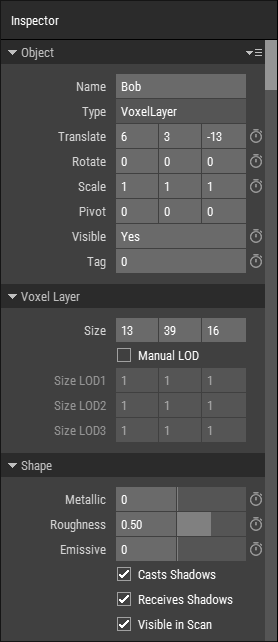 🔺 Figure 1: The Inspector.
What the Inspector Is Used For
Use the Inspector to view and edit data without leaving the current workspace.
Typical tasks include:
- Editing object properties such as transforms and object-specific settings.
- Editing asset properties when no object is selected.
- Adjusting values precisely by typing, dragging, or using sliders.
- Adding animation channels and keyframes for animatable properties.
The Inspector is commonly used together with the Hierarchy. You select an object in the Hierarchy and then edit its settings in the Inspector.
For more information, see Editing Object Properties and Editing Asset Properties.
Animation Support
If a property can be animated, the Inspector provides controls for working with animation channels and keyframes.
This allows you to animate object properties directly from the same panel where you edit them.
For more information, see Introduction to Keyframe Animation.
Input Fields
The Inspector uses different kinds of controls depending on the type of property being edited.
Text Input Fields
Text input fields are used to edit text or numeric values.

To change numeric values:
- Type the value directly into the field.
- Middle-click the field and drag left or right to adjust the value.
- Use
UpandDownto change the value in increments of 1. - Hold
Shiftwhile pressingUporDownto change the value in increments of 10. - For float values, use
Ctrl + UpandCtrl + Downto change the value in increments of 0.1. - Some fields also provide a slider for faster adjustment.
When using a slider or middle mouse dragging, hold Shift to increase the adjustment speed or Ctrl to decrease it.
Index Controls
Index controls are used to set the index of a color in a Color Palette or a material in a Material Set.

To change an index:
- Type the desired index directly into the field.
- Or click the button
 to choose a color or material from a selection window.
Color Controls
Color controls are used to enter or select a color value.

To change a color value:
- Enter the color as a hex value.
- Or click the button to open a color picker.
Boolean Controls
Boolean controls are used for properties that can be enabled or disabled.

If a property can be animated, the boolean control appears as a text field showing Yes or No. If it cannot be animated, it appears as a checkbox instead.
To change the value, click the field or checkbox to toggle it.
Related Topics
- Hierarchy: Select objects and manage scene structure.
- Pages: Learn how the page system works.
- Editing Object Properties: Learn more about object settings.
- Introduction to Keyframe Animation: Learn how animation works in Foxel.