Working with Files
Working with Foxel also means working with multiple files of different types, such as Voxel Scenes or Color Palettes.
Foxel provides built-in file lists that let you view and manage these files directly in the application. On this page, you can learn how to rename, duplicate, delete, select, filter, sort, and display files.
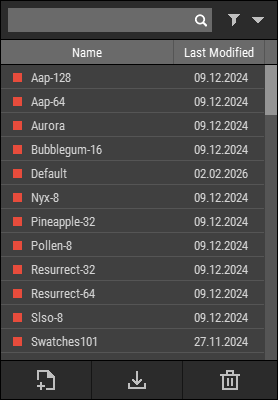 🔺 Figure 1: A typical file list.
Renaming, Duplicating, and Deleting Files
DANGER
Renaming, duplicating, or deleting files in Windows Explorer is not reflected automatically in Foxel and may result in data inconsistencies.
To manage files, always use the actions provided by the Foxel interface.
INFO
Files named default or project are considered vital and cannot be renamed, duplicated, or deleted.
Renaming Files
- Select the files you want to rename.
- Right-click the selection.
- Choose Rename from the context menu.
- Enter the new name and click OK.
The new name must follow the Naming Rules for files and objects in Foxel.
Duplicating Files
- Select the files you want to duplicate.
- Right-click the selection.
- Choose Duplicate from the context menu.
Deleting Files
- Select the files you want to delete.
- Click the Delete button.

- Confirm the deletion.
DANGER
Deleting files is permanent and cannot be undone.
Selecting Files
- Select a single file: Click the file. All previously selected files are deselected.
- Select or deselect another file: Hold
Ctrland click the file. - Select a range of files: Click a file, then hold
Shiftand click a second file. This selects both files and all files between them. - Select all files: Right-click a file and choose Select All.
- Deselect all files: Right-click a file and choose Deselect.
- Invert the selection: Right-click a selected file and choose Invert Selection. This selects all unselected files and deselects all selected files.
Filtering, Sorting, and Displaying Files
- Filter by name: Enter two or more characters in the search box. Foxel displays all files whose names contain the entered characters.
- Filter by property: Select an option from the filter drop-down menu to filter files by properties such as category or modification date.
- Sort files: Click Name or Modification Date in the list header.
- Reverse the sort order: Click Name or Modification Date again.
- Switch between list view and icon grid view: Click the corresponding display mode button. Some file lists support an icon grid that shows thumbnail previews.