Working with the Material Set
Materials are managed directly in the Material Set on the Surface page of the workspace. For an overview of workspace pages, see Pages.
Opening the Material Set
To work with materials, open the Surface page and use the Material Set panel on the right side.
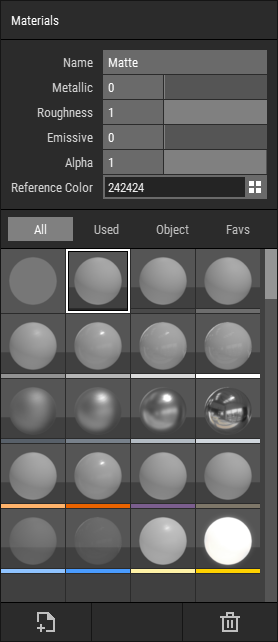 🔺 Figure 1: The Material Set panel.
Selecting Materials
Click a material to make it the active material.
You can also select multiple materials for Material Set operations:
- Hold
Ctrlto add or remove individual materials from the selection. - Hold
Shiftto select a range of materials.
Editing a Material
Only the active material can be edited.
You can adjust the following properties:
- Metallic
- Roughness
- Emissive
- Alpha
You can also assign a Reference Color to a material. The Reference Color is used when Foxel displays materials as colors instead of their normal shaded appearance.
This is used in two places:
- In the material debug render mode, which can be enabled from the Header Bar, the Reference Color is shown as the voxel color.
- In the Material channel of the Mini Editor, materials are also shown using their Reference Colors.
Materials can also be given a name. Material names are shown as tooltips wherever the Material Set is displayed.
Adding and Deleting Materials
You can add new materials to the Material Set and delete selected materials.
New materials are added to the next available empty slot. If the Material Set is full, no additional materials can be added until space is available.
Importing Materials
You can import materials from external files into the current asset's Material Set.
Imported materials are added automatically until the Material Set is full.
Saving and Loading Shared Material Sets
The Material Set context menu includes Save and Load commands for working with Foxel's shared material set files.
- Save stores the current Material Set as a shared material set file.
- Load replaces the current Material Set with a shared material set file.
Shared material sets can be reused across different assets and projects. They can also be selected when creating a new asset. For more information, see Shared Material Sets.
The Default Material
Each Material Set contains a built-in Default Material at slot 0.
The Default Material is always available and cannot be deleted. Unlike regular materials, it is not edited in the Material Set panel. Instead, its properties are controlled per object in the Inspector.
For more information, see Using the Default Material.
Organizing Materials
The context menu provides several commands for arranging and managing the Material Set:
- Organize removes gaps and packs materials more tightly in the Material Set view.
- Clear removes all editable materials from the Material Set.
- Export Selected saves the selected materials to a file.
When materials are organized, Foxel remaps the affected material indices internally so the appearance of the asset stays unchanged.