Scene View
The Scene View is the main area where you view and edit your voxel content. It is where you model, paint, position objects, preview materials, and inspect your scene from different angles while you work.
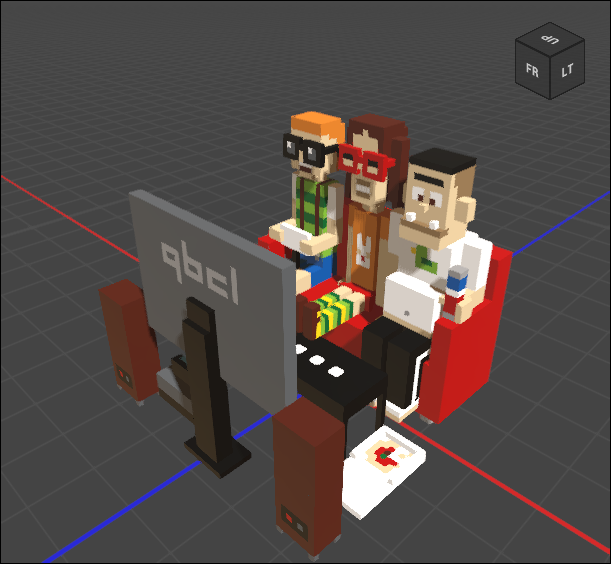 🔺 Figure 1: The Scene View.
Key Features
- 3D Editing: Create and edit voxel content directly in the scene.
- Object Manipulation: Select, move, rotate, and scale objects in your project.
- Material Preview: View how colors and materials look under different lighting conditions.
- Animation Preview: Preview animated content directly in the scene.
- Scene Inspection: Navigate freely to inspect objects, composition, and spatial relationships.
Navigating the Scene
You can navigate the Scene View using a combination of mouse and keyboard controls:
- Panning: Use the middle mouse button to pan across the scene. Alternatively, hold the spacebar and drag with the left mouse button.
- Rotating: Hold the right mouse button to rotate the view.
- Zooming: Use the mouse wheel to zoom in and out. You can also hold
Altwhile dragging with the right mouse button. - Rotate to Perpendicular View: Use the View Cube in the top-right corner of the Scene View to switch to a perpendicular view.
- Flythrough Mode: While holding the right mouse button, use
W,A,S, andDto move through the scene. PressQto move down andEto move up. - Frame Selection: Press
Fto frame the selected object in the Scene View. - Focus Under Cursor: Press
Shift + Fwhile pointing at an object or surface to move the camera focus to the point under the cursor.
View Display
How the Scene View is rendered can be adjusted from the Header Bar.
This includes quick access to common display options as well as Beauty View, which switches to a higher-quality preview configuration.
For detailed information, see Header Bar.