Importing Minis
Mini data can be imported either as new Mini Sets or as new Minis added to an existing Mini Set.
Importing Mini Sets
To import one or more files as new Mini Sets:
- Open the Minis page.
- Use the Import command for Mini Sets.
- Select the files you want to import.
- Confirm the import.
Each successfully imported file creates a new Mini Set.
Importing Minis into an Existing Mini Set
To import files into the currently open Mini Set:
- Open the Mini Editor.
- Click Import.
- Select the files you want to import.
- Confirm the import.
The imported data is converted into new Minis and added to the current Mini Set.
Importing Images
You can import an image to generate a full Mini Set or a group of Minis automatically.
Foxel divides the image into square cells and converts each non-empty cell into a Mini.
Supported Image Sizes
The image width must be 128, 256, or 512 pixels.
Foxel always divides the image into 16 columns. The size of each source cell is therefore:
- 512 px image → 32 × 32 cells
- 256 px image → 16 × 16 cells
- 128 px image → 8 × 8 cells
The image height must match the cell size multiplied by 1 to 16 rows. A maximum of 256 Minis can be generated from a single image.
If imported cells are smaller than 32 × 32, they are centered inside the resulting Mini.
Color and Material Assignment
Because each Mini Set has its own Color Palette and Material Set, imported image colors are mapped to the palette of the target Mini Set.
Standard images do not contain material or height data. Imported image-based Minis therefore use the Default Material and are created without height information.
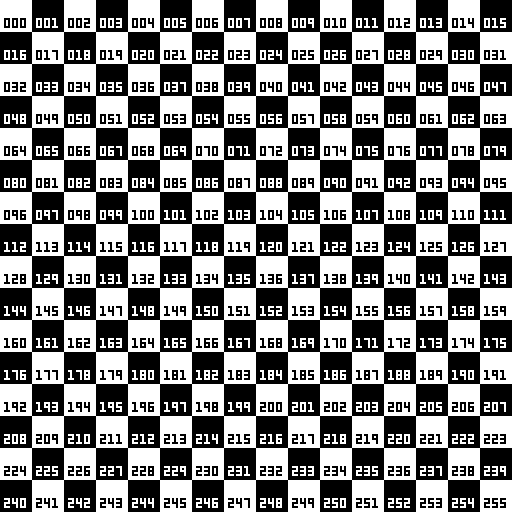 🔺 Figure 1: A 512 × 512 image can contain up to 256 source cells for Mini generation.
Importing Heightmap Assets
You can also import Heightmap assets to generate Minis.
Because Heightmaps can be up to 256 × 256 pixels and each Mini is 32 × 32, a single Heightmap can generate up to 64 Minis.
The following Heightmap sizes are supported:
| Heightmap Size | Number of Minis |
|---|---|
| 256 × 256 | 64 |
| 128 × 128 | 16 |
| 64 × 64 | 4 |
| 32 × 32 | 1 |
Color and Material Mapping
When importing a Heightmap, its colors and materials are remapped to the Color Palette and Material Set of the target Mini Set.
Unlike regular images, Heightmaps also contain height information. The generated Minis therefore preserve height data where possible.
Mini heights are limited to a maximum value of 32.