Scaling 3D Objects
You can scale 3D objects in Foxel in three ways:
- in the Inspector
- with the Scale dialog
- with the Scale Tool
Scaling in the Inspector
You can edit scale values directly in the Inspector.
Scale values are defined in the object's local space, relative to its parent in the hierarchy.
If multiple objects are selected, changing the scale in the Inspector applies the same scale values to all selected objects.
Scaling with the Dialog
To scale objects with the dialog:
- Select the object or objects you want to scale.
- Choose Object > Transform > Scale.
- Enter the scale settings.
- Click OK.
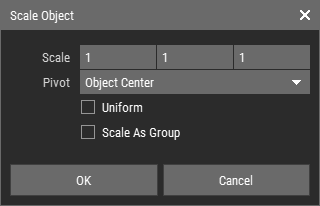 🔺 Figure 1: Scale dialog.
Scale Dialog Options
| Scale | Defines the scale factor along the X, Y, and Z axes. |
| Pivot | Defines which pivot mode is used for scaling. |
| Uniform Scaling | Keeps the proportions of the object while scaling. |
| Scale as Group | Scales the selection from a shared center instead of scaling each object individually. |
Pivot Options
- Object Center: Scales each object from its own center.
- Object Pivot: Scales each object from its pivot point.
All scaling performed through the dialog uses world space.
Scaling with the Scale Tool
The Scale Tool provides an interactive way to scale objects directly in the scene.
- Activate the Scale Tool.
- Select the object or objects you want to scale.
- Drag a gizmo handle to scale along a specific axis, or drag the center cube to scale uniformly.
INFO
Hold Shift while scaling to use integer steps.
TIP
If voxels are currently selected, the Scale Tool scales the selected voxels instead of the object. Deselect the voxels if you want to scale the object itself. For more information, see Scaling Voxel Grids.
Scale Tool Options
Before scaling, you can choose the transform space and pivot mode in the Toolbar.
This affects how the scaling is applied to the selected objects.