Advanced View Options
The Advanced View Options dialog can be opened from the View Options menu in the Header Bar.
It allows you to adjust detailed rendering settings for the default camera, which is the main camera used while working in the Scene View.
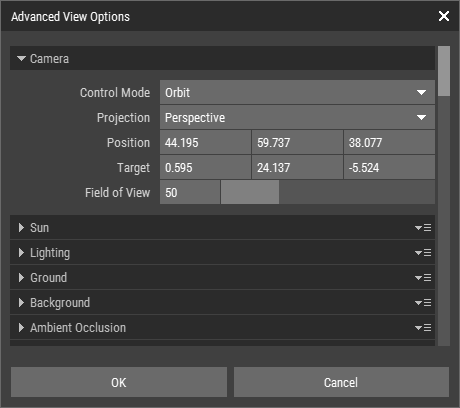 🔺 Figure 1: The Advanced View Options dialog.
Custom cameras, by contrast, are primarily used for rendering to file. Their settings are edited in the Inspector. For more information, see Setting Up Cameras.
Available Settings
Default Camera
- Control Mode: Choose between Orbit or First Person control modes to navigate your scene.
- Projection: Select either Perspective or Orthographic projection to determine how your scene is rendered.
- Position: Set the position of the camera in the 3D space.
- Target: This option is available only in Orbit mode, allowing you to define the point the camera orbits around.
- Yaw, Pitch: These settings are available only in First Person mode, allowing you to adjust the camera's orientation.
- Field of View: Adjust the field of view to control how much of the scene is visible through the camera.
Sun
- Azimuth: This property determines the horizontal angle of the Sun in the sky. Adjusting the azimuth changes the direction from which the sunlight is coming, affecting the shadows and highlights in your scene.
- Elevation: The elevation controls the vertical angle of the Sun. A higher elevation simulates midday sunlight, while a lower elevation can create longer shadows, mimicking early morning or late afternoon light.
- Color: You can customize the color of the Sun to achieve different lighting effects. Warmer colors can create a sunset effect, while cooler colors can simulate a midday sun.
- Disk Visible: This option allows you to display the Sun as a visible disk in your scene. Enabling this feature can enhance the realism of your renders, especially when combined with atmospheric effects.
- Disk Size: Adjust the size of the Sun's disk when the "Show Disk" option is enabled. A larger disk can create a more pronounced visual effect in your scene.
- Intensity: The intensity setting controls the brightness of the Sun. Increasing the intensity will result in brighter lighting and more pronounced shadows, while decreasing it will soften the overall illumination.
Pleae note that the Sun is always turned on for the default camera.
Lighting
The default camera supports four different lighting modes: Diffuse Only, Uniform Lighting, Image-Based Lighting, and Atmospheric Scattering. Each mode affects how colors, materials, and surface detail appear in the Scene View.
Diffuse Only
Diffuse Only uses Lambert diffuse shading without any specular lighting. This is useful for simple, distraction-free scene previewing while still preserving basic light and form.
- Ambient Light Color: Sets the color of the ambient light.
- Ambient Light Intensity: Adjusts the brightness of the ambient light.
Uniform Lighting
Uniform Lighting provides a simple, consistent light source across the entire scene. This is useful when you want even illumination without environmental effects.
- Color: Sets the color of the light.
- Intensity: Adjusts the brightness of the light.
Image-Based Lighting
Image-Based Lighting uses a cubemap to light the scene based on an environment image. This can produce more natural reflections and more realistic material response.
- Cubemap: Selects the environment cubemap used for lighting.
- Intensity: Controls how strongly the cubemap affects the scene lighting.
- Blur: Blurs the rendered background environment. This does not affect the lighting itself.
- Angle: Rotates the cubemap around the Y-axis to change the lighting direction.
Atmospheric Scattering
Atmospheric Scattering simulates sky and atmosphere lighting, producing more natural outdoor lighting and background appearance.
- Rayleigh Color: Sets the color of Rayleigh scattering, which mainly affects the blue tones of the sky.
- Rayleigh Density: Controls the strength of Rayleigh scattering.
- Mie Color: Sets the color of Mie scattering, which affects haze and similar atmospheric effects.
- Mie Density: Controls the strength of Mie scattering.
- Ozone Color: Sets the color of ozone scattering.
- Ozone Density: Controls the strength of ozone scattering.
- Phase: Controls the scattering phase behavior.
- Intensity: Adjusts the overall strength of the atmospheric lighting effect.
Ground
- Color: Set the color of the ground plane.
- Horizon: Adjust the horizon line to control the visibility of the ground in relation to the sky.
Background
- Color: Set the color of the background.
Ambient Occlusion
- Radius: Set the radius for ambient occlusion effects, which enhances the depth perception of objects in your scene.
- Intensity: Control the intensity of the ambient occlusion effect to achieve the desired level of shading.
Bloom
- Intensity: Adjust the intensity of the bloom effect, which creates a glow around bright areas in your scene.
- Threshold: Set the threshold for the bloom effect to determine which areas of the scene will be affected.
Base Grid
- Gridline Spacing: Specify the spacing for gridlines in the scene view to assist with alignment and positioning.
- Color: Choose the color of the gridlines for better visibility against your scene.
Object Ghosts
Object ghosts are rendered behind isolated objects, providing a visual reference for framing and isolating objects in your scene.
- Opacity: Adjust the opacity of the object ghosts to control their visibility.
Dynamic LOD
Dynamic LOD automatically switches the displayed level of detail based on the distance between the camera and the object.
- Enable Dynamic LOD: Turns dynamic LOD on or off.
- LOD 1 Distance: Sets the distance at which LOD 1 is used.
- LOD 2 Distance: Sets the distance at which LOD 2 is used.
- LOD 3 Distance: Sets the distance at which LOD 3 is used.