Shared Cubemaps
Cubemaps are shared files used for environment rendering in Foxel. They can be used for Image-Based Lighting, reflections, and background environments.
Accessing Shared Cubemaps
Shared Cubemaps can be accessed through File > Shared Files > Cubemaps.
File Location
Shared Cubemaps are stored in:
Documents\Foxel\Shared\Cubemaps
File Format
Foxel stores Cubemaps in its proprietary .fxlcm format.
This format contains both the environment data and the derived convolution data needed for fast loading and efficient rendering.
Importing Cubemaps
You can import Cubemaps through File > Shared Files > Cubemaps.
Foxel supports several import methods.
Importing Common Cubemap Layouts
Foxel can import many common cubemap image layouts automatically.
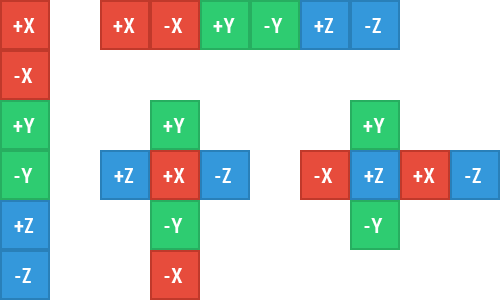 🔺 Figure 1: Supported cubemap layouts.
Importing Six Separate Images
You can also import a Cubemap from six individual images.
The filenames must include these suffixes:
_right_left_top_bottom_front_back
Example:
cubemap_right.pngcubemap_left.pngcubemap_top.pngcubemap_bottom.pngcubemap_front.pngcubemap_back.png
Note
When importing a Cubemap from six separate images, select only one of the six files. Foxel loads the remaining faces automatically.
Importing 360° Panoramas
Foxel can also generate Cubemaps from 360° panorama images that use equirectangular projection.
 🔺 Figure 2: Equirectangular panorama image.
Supported Import Formats
| File Format | File Extension |
|---|---|
| Image | .png, .bmp, .jpg, .gif, .tiff |
| HDR Image | .hdr |
Exporting Cubemaps
Shared Cubemaps can be exported through File > Shared Files > Cubemaps.
If one Cubemap is exported, Foxel asks for a filename. If multiple Cubemaps are exported, Foxel asks for a destination folder.
Exported Cubemaps use the horizontal cross layout.
Supported Export Formats
| File Format | File Extension |
|---|---|
| Image | .png, .bmp, .jpg, .gif, .tiff |