Asset Export Settings
Export Settings let you control how assets are exported from Foxel.
They define how mesh geometry, texture maps, material data, animation data, and generated output files are written during export.
You can use different settings profiles for different export workflows.
Opening Export Settings
To open the Export Settings dialog:
- Open the File menu.
- Click the button next to Export.
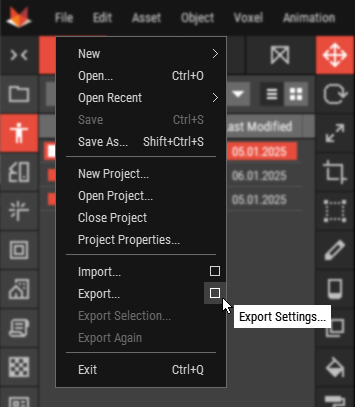
Export Settings Dialog
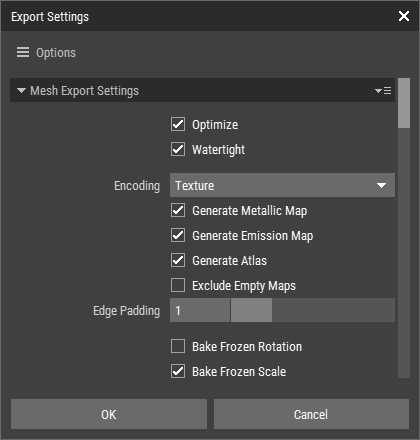
The Export Settings dialog contains settings for mesh export.
Mesh Export Settings
| Optimize | Optimizes the exported mesh for reduced file size and better performance. |
| Watertight | Attempts to generate closed mesh geometry without holes or gaps. |
| Encoding | Defines how surface data is stored in the exported result. |
| Texture Set Layout | Defines how generated texture maps are encoded and packed. |
| Generate PBR Maps | Exports additional maps for metallic, roughness, and emissive data. The exact maps and channel layout depend on the selected Texture Set Layout. |
| Generate Texture Atlas | Combines texture data into a texture atlas. |
| Exclude Empty Maps | Skips texture maps that do not contain any relevant data. |
| Edge Padding | Adds padding around texture islands to reduce texture bleeding. |
| Bake Frozen Rotation/Scaling | Bakes frozen rotation and scaling into the exported mesh. |
| Bake Pivot | Bakes the object pivot into the exported mesh. |
| Export Keyframes | Includes keyframe animation data in the export. |
| Bake Key Every | Defines the interval used when baking animation keys. |
| Exclude Cap | Omits outer cap geometry on selected sides of the voxel grid. |
| Generate LOD Files | Exports additional Level of Detail files. |
| Postfixes | Defines the postfixes appended to generated filenames. |
Encoding Options
The Encoding option defines where exported surface data is stored.
Texture
Color and material data are stored in texture maps.
Use this option when exporting to game engines, renderers, or workflows that expect image-based material data.
Texture encoding can include:
- color
- alpha
- metallic
- roughness
- emissive
The exact maps and channel layout depend on the selected Texture Set Layout.
Vertex Color
Color is stored per vertex.
PBR material data is not included when using this option.
Use this option for simple workflows where you only need color information and do not need texture-based metallic, roughness, alpha, or emissive data.
Texture Set Layout
The Texture Set Layout option defines how Foxel writes generated texture maps.
Different engines and renderers expect material data in different maps and texture channels. The selected layout controls how Foxel encodes the following channels:
| Channel | Description |
|---|---|
| Color | The visible surface color. |
| Alpha | The opacity value of the surface. |
| Metallic | Defines how metallic the surface is. |
| Roughness | Defines how rough or smooth the surface reflection is. |
| Emissive | Defines how much light the surface emits. |
Color Maps and Data Maps
Exported texture maps fall into two categories:
| Map Type | Description |
|---|---|
| Color maps | Store visible color information and should usually be imported as sRGB/color textures. |
| Data maps | Store numeric material values and should usually be imported with sRGB disabled. |
The Base Color Map and Emissive Map are color maps.
Packed material maps such as ORM, Mask Map, Metallic Smoothness, and Metallic Roughness are data maps.
Import Note
When importing packed PBR maps into an external application, make sure they are treated as data textures, not color textures.
For example, metallic, roughness, smoothness, ORM, mask, and metallic-roughness maps should usually be imported with sRGB disabled.
Emissive Map
The Emissive Map stores the final emission color.
Foxel calculates this from the voxel color and the material's emissive value:
emissive color = base color × emissiveThis means emissive voxels emit their own color. For example, a red voxel with high emissive strength exports as red emission, while a blue voxel exports as blue emission.
Texture Set Layouts
Generic PBR
The Generic PBR layout writes the material channels as separate maps.
| Map | Encoding |
|---|---|
| Base Color Map | RGB = color, A = alpha |
| Metallic Map | metallic |
| Roughness Map | roughness |
| Emissive Map | emissive color |
Use this layout when you want clear, separate maps or when your target application does not require a specific packed texture format.
This layout is usually the easiest option for manual setup in external tools.
Unreal / Godot ORM
The Unreal / Godot ORM layout writes roughness and metallic data into an ORM-style packed texture.
| Map | Encoding |
|---|---|
| Base Color Map | RGB = color, A = alpha |
| ORM Map | R = occlusion, G = roughness, B = metallic, A = unused |
| Emissive Map | emissive color |
Foxel does not generate occlusion data. The occlusion channel is written as white.
Use this layout for Unreal Engine, Godot, or other workflows that use an occlusion/roughness/metallic packed texture.
Unity Built-in / URP
The Unity Built-in / URP layout writes metallic and smoothness data in a Unity-compatible layout.
| Map | Encoding |
|---|---|
| Base Map | RGB = color, A = alpha |
| Metallic Smoothness Map | R = metallic, A = smoothness |
| Emissive Map | emissive color |
Unity commonly uses smoothness instead of roughness.
Foxel converts roughness to smoothness during export:
smoothness = 1 - roughnessUse this layout for Unity Built-in Render Pipeline or Unity Universal Render Pipeline projects.
Unity HDRP Mask Map
The Unity HDRP Mask Map layout writes material data into an HDRP-style mask map.
| Map | Encoding |
|---|---|
| Base Color Map | RGB = color, A = alpha |
| Mask Map | R = metallic, G = occlusion, B = detail mask, A = smoothness |
| Emissive Map | emissive color |
Foxel does not generate occlusion data or detail masks.
The Mask Map is written as:
R = metallic
G = 1
B = 0
A = 1 - roughness
The occlusion channel is written as white, which represents no occlusion. The detail mask channel is written as black, which represents no detail mask influence.
Use this layout for Unity High Definition Render Pipeline projects.
glTF Metallic-Roughness
The glTF Metallic-Roughness layout writes metallic and roughness data in a glTF-style packed texture.
| Map | Encoding |
|---|---|
| Base Color Map | RGB = color, A = alpha |
| Metallic Roughness Map | G = roughness, B = metallic |
| Emissive Map | emissive color |
The red and alpha channels of the Metallic Roughness Map are not used for metallic or roughness data.
Use this layout when exporting for glTF-style workflows or applications that expect roughness in the green channel and metallic in the blue channel.
Exclude Cap
Cap exclusion can be configured per side of the voxel grid:
- left
- right
- top
- bottom
- front
- back
For example, if Exclude Bottom is enabled, bottom-facing geometry is omitted only where it lies on the outer bottom boundary of the voxel grid.
Generate LOD Files
When Generate LOD Files is enabled, Foxel exports additional meshes for lower levels of detail.
These files can be used in external applications that support separate mesh files for different levels of detail.
Postfixes
Postfixes are added automatically to generated filenames.
They are used to distinguish generated files such as texture maps, LOD variants, or other export outputs.
For example, a base filename may be extended with postfixes for:
- base color maps
- metallic maps
- roughness maps
- emissive maps
- packed material maps
- LOD files
Using Export Settings Profiles
Foxel supports multiple export settings profiles.
You can use export settings profiles to reuse export configurations for different workflows.
The Options menu at the top of the Export Settings dialog includes the following commands:
- Load Profile: Loads settings from an Export Settings Profile.
- Save Profile: Saves the current settings to an Export Settings Profile.
- Reset To Default: Restores the default export settings.
For more information about Export Settings Profiles, see Export Settings Profiles.