Workspace Overview
The Foxel workspace is designed around a central editing area and task-based side panels.
The Scene View remains at the center of your work, while the surrounding panels change depending on what you are currently doing. This allows you to model, paint, animate, and manage project content without switching to a completely separate interface.
Instead of opening different editors for different tasks, you switch pages. Each page updates the left and right panels to show the tools and information that are most relevant to that task.
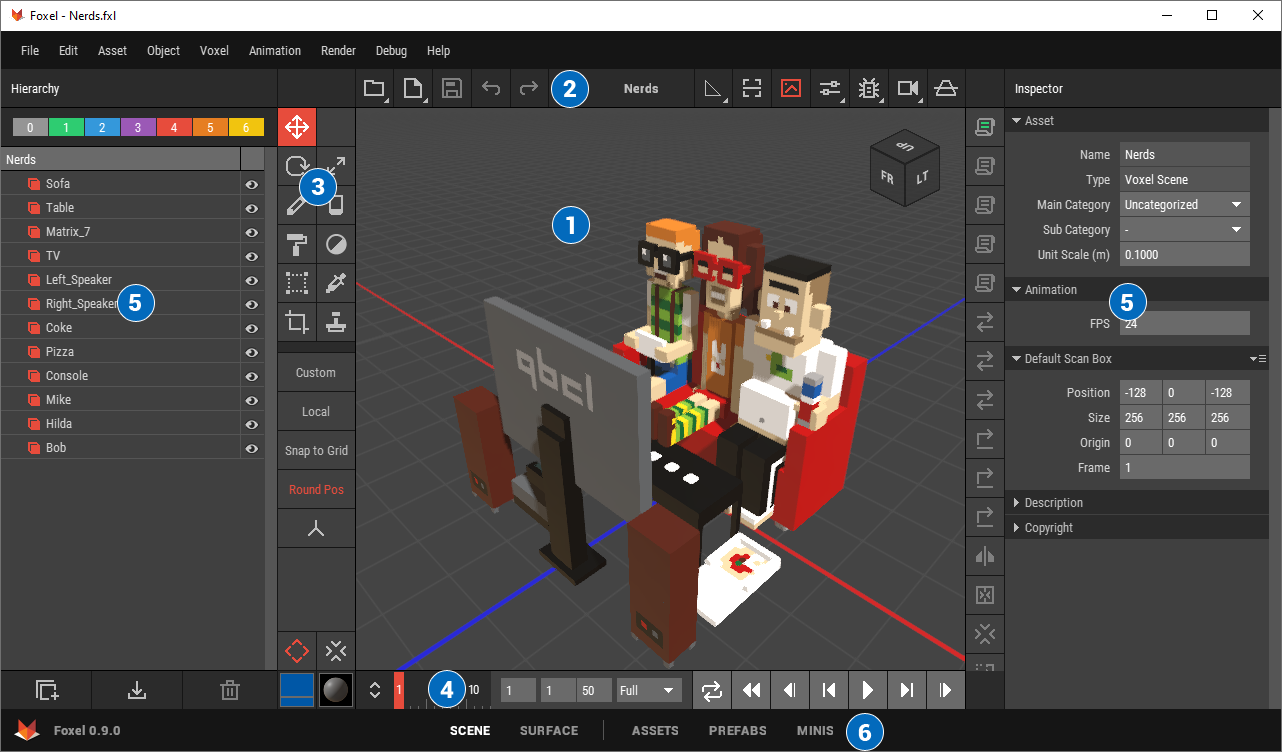 🔺 Figure 1: The Foxel workspace.
Main Areas of the Workspace
The numbered items below correspond to the numbered elements shown in Figure 1.
Scene View
The main area where you view, navigate, and edit your content.Header Bar
Provides access to common file actions, undo and redo, and display-related scene view controls.Toolbar
Contains the active editing tools, their options, and the currently selected color and material.Timeline
Used for playback, frame navigation, and keyframe editing when working with animation.Left and Right Panels
These panels display task-specific content. Their contents depend on the currently selected page. For example, the Scene page shows the Hierarchy and Inspector, while the Surface page shows Colors and Materials.Page Bar
Lets you switch between workspace pages. Changing the page updates the side panels while keeping the Scene View visible.
How Pages Work
Pages organize Foxel by task.
For example:
- Use Scene to organize objects and edit their properties.
- Use Surface to work with colors and materials.
- Use Assets to manage projects and asset files.
- Use Prefabs and Minis to place reusable content into the scene.
This keeps the workspace focused while still making the most important parts of the project easy to reach.
Related Topics
- Pages: Learn how the page system works and what each page is used for.
- Working with Files: Learn how to create, open, rename, duplicate, filter, sort, and delete files.
- Copying and Pasting: Learn how to cut, copy, and paste objects, voxels, pixels, and bitmap data.
- Preferences: Customize Foxel’s behavior and workflow settings.
- Default Shortcuts: See the default keyboard shortcuts.
- Customizing Shortcuts: Change existing shortcuts or create your own.