Editing Channels
To animate a property, you first need to create a channel for it.
Animatable properties are shown in the Inspector with a stopwatch icon.
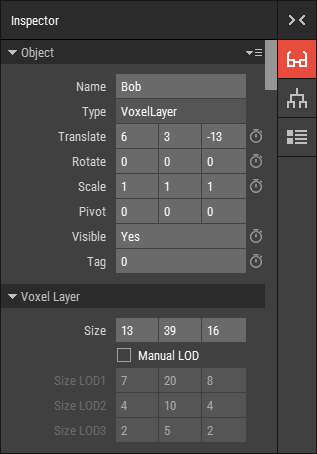
Creating a Channel
To create a channel:
- Select the object you want to animate.
- Open the Inspector.
- Click the stopwatch icon next to the property you want to animate.

After a channel has been created, the property is highlighted in blue in the Inspector.

Viewing Channels
All channels of the selected object are listed in the Timeline, where their keyframes can be edited.

Managing Channels
Enable or Disable a Channel
To temporarily disable a channel, click the checkbox to the left of its name in the Timeline.
When a channel is disabled, it no longer affects the animation until it is enabled again.
Delete a Channel
To delete a channel, click the stopwatch icon again, or right-click the channel in the Timeline and select Delete Channel.
Interpolation Modes
Channels can use different interpolation modes depending on the property type.
Available interpolation modes include:
Step
Switches directly to the next keyframe value without interpolation.Linear
Interpolates evenly between keyframes.Spline
Uses a smooth curve between keyframes.Tween
Generates intermediate values automatically for smoother transitions.
To change the interpolation mode of a channel, click the interpolation button next to the channel name in the Timeline.