Selecting Colors and Materials for Drawing
Before drawing, painting, or applying materials, you need to choose the color and material that will be used for new voxels, pixels, or texels.
In Foxel, the Color Palette and Material Set are located on the Surface page of the workspace. For an overview of workspace pages, see Pages.
Selecting a Color
To select a color, click a color in the Color Palette.
The selected color is used by drawing and painting tools when applying color to elements.
You can also open the Color Selector from the Toolbar or by pressing 1. The Color Selector lets you choose a color visually and matches it to the closest available entry in the current asset's Color Palette.
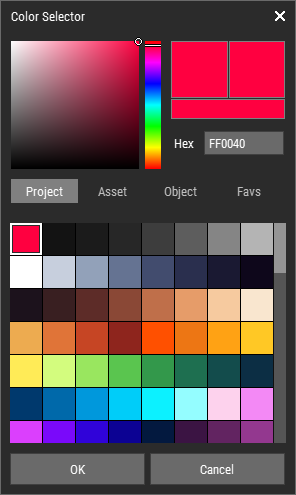 🔺 Figure 1: The Color Selector.
Selecting a Material
To select a material, click a material in the Material Set.
The selected material is used by editing tools when applying materials to voxels, pixels, or texels.
You can also open the Material Selector from the Toolbar or by pressing 2. Unlike the Color Selector, the Material Selector shows only the materials that already exist in the current asset's Material Set.
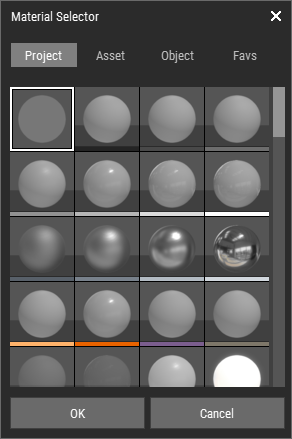 🔺 Figure 2: The Material Selector.
Using the Eyedropper
The Eyedropper lets you pick a color or material directly from existing content.
While using most editing tools, hold Alt and click a voxel, pixel, or texel to sample its color and material. This is a quick way to continue working with values that are already present in the asset.