Customizing Shortcuts
Foxel allows you to customize keyboard shortcuts to better match your workflow.
You can change existing shortcuts, assign shortcuts to commands that do not yet have one, or restore the default configuration.
Shortcut Editor
The Shortcut Editor lets you view and manage keyboard shortcut assignments.
To open the Shortcut Editor:
- Choose Edit > Keyboard Shortcuts.
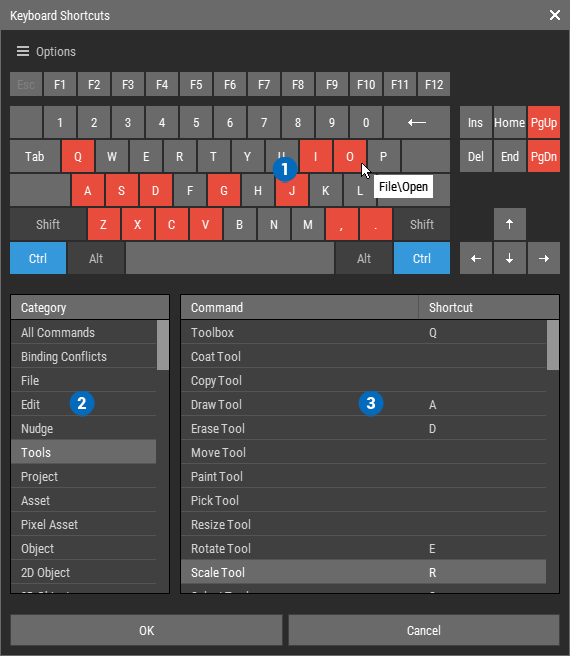 🔺 Figure 1: The Shortcut Editor. 1️⃣ Keyboard, 2️⃣ Category List, 3️⃣ Command List.
The Shortcut Editor is divided into three areas: Keyboard, Category List, and Command List.
Keyboard
The Keyboard shows a simplified U.S. keyboard layout.
 | Key with no shortcut assigned |
 | Key with at least one shortcut assigned |
 | Inactive modifier key |
 | Active modifier key |
To see which command is assigned to a key, hover over it. The assigned command appears in a tooltip.
Clicking a key that has a shortcut assigned selects the corresponding command in the Command List and its category in the Category List.
Selecting one of the modifier keys Shift, Ctrl, or Alt updates the keyboard display to show which shortcuts are assigned together with that modifier. Active modifier keys are highlighted in blue.
Category List
All available commands are grouped into categories, which are shown in the Category List.
Select a category to display its commands in the Command List.
The Category List also contains the entries All Commands and Binding Conflicts:
- All Commands displays every available command.
- Binding Conflicts displays commands that currently share the same shortcut.
Command List
The Command List shows all commands and shortcut assignments in the selected category.
Managing Shortcuts
Adding or Modifying a Shortcut
- Double-click the command in the Command List. The right side of the command entry turns red.
- Press the key you want to assign. Hold down any modifier keys (
Ctrl,Shift,Alt) that you want to include in the shortcut.
Removing a Shortcut
- Right-click the command in the Command List.
- Choose Remove from the context menu.
Resetting a Shortcut
- Right-click the command in the Command List.
- Choose Reset to Default from the context menu.
Binding Conflicts
Each command in Foxel can have only one assigned shortcut. However, the Shortcut Editor does allow the same shortcut to be assigned to multiple commands.
When this happens, a binding conflict is created. All binding conflicts must be resolved before the shortcut mapping can be saved.
Commands with a binding conflict are marked with the warning sign ⚠️.
To resolve a binding conflict:
- Select Binding Conflicts in the Category List.
- Select a conflicting command in the Command List.
- Use the methods described in Managing Shortcuts to remove or change the conflicting assignment.
Repeat this process until the Binding Conflicts list is empty.
Resetting, Saving, and Loading Shortcuts
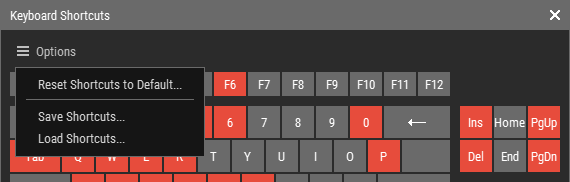 🔺 Figure 2: The Options menu.
Use the Options menu at the top of the Shortcut Editor to:
- Reset all shortcuts to their default assignments.
- Save the current shortcut mapping to a file.
- Load a shortcut mapping from a file.