Project Mini
Use Project Mini to project a Mini onto a voxel grid from one side.
This is useful for stamping Mini data onto voxel surfaces.
For more information about Minis, see Minis.
How to Use It
- Select a Voxel Layer.
- Go to Voxel > Operations > Project Mini.
- Adjust the options.
- Confirm the dialog.
Options
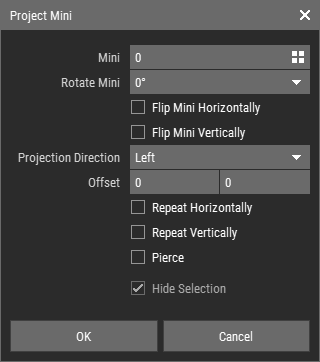
- Mini: Sets the Mini to project.
- Rotate Mini: Rotates the Mini in 90° steps.
- Flip Mini Horizontally: Flips the Mini horizontally.
- Flip Mini Vertically: Flips the Mini vertically.
- Projection Direction: Sets the direction from which the Mini is projected.
- Offset: Sets the projection offset along the chosen direction.
- Repeat Horizontally: Repeats the Mini horizontally.
- Repeat Vertically: Repeats the Mini vertically.
- Pierce: Controls whether the projection stops at the first voxel it hits or continues through.
- Hide Selection: Hides the selection highlight in the preview.
Notes
- Colors and materials from the Mini are mapped to the color palette and material set of the open asset.
- Height information stored in the Mini is not used by this operation.
- If voxels are selected, the Mini is only projected onto those voxels.
- When the dialog opens, the projection direction is aligned to the closest direction facing the camera.
- Empty outer areas of the Mini are cropped automatically, so repeated Minis are placed without visible spacing.