Minis Panel
The Minis Panel is located in the Left Sidebar and provides essential tools for managing and selecting Minis within your projects. A Mini is a compact bitmap designed to store color, material, and height information. These Minis facilitate the quick addition of predefined small objects, which can be created in 2D and subsequently converted into 3D models. For more information, see the Minis section.
Minis Tab
The Minis Tab displays all Minis of the active Mini Set.
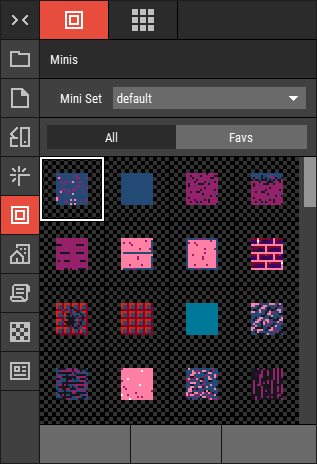 🔺 Figure 1: The Minis Tab.
- Activate a Mini Set: Change the active Mini Set by using the select dropdown at the top of the list.
- Select a Mini for the Stamp Tool: Click on a Mini to select it for the Stamp Tool. For more details, see Using the Stamp Tool.
- Manage Favorite Minis: Easily manage your favorite Minis for quick access during your creative process.
Mini Sets Tab
The Mini Sets Tab lists all Mini Sets of the currently open project. This tab offers several functionalities:
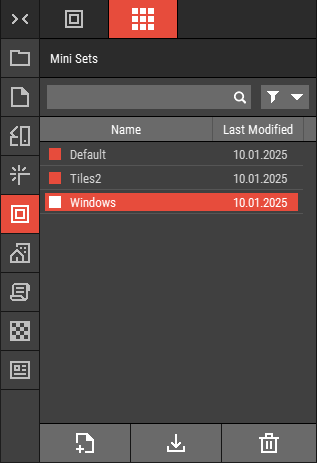 🔺 Figure 2: The Mini Sets Tab.
- Create a New Empty Mini Set: Use the New Mini Set button to create a new, empty Mini Set.
- Edit Mini Sets: Double-click on a Mini Set to open it in the Mini Set Editor. For more details, see Editing Mini Sets.
- Manage Mini Sets: Easily delete, rename, or duplicate existing Mini Sets to keep your workspace organized. For more information, see Working with Files.
- Import and Export: Import existing Mini Sets to expand your options or export your custom Mini Sets for use in other projects. For more information, see Importing Minis and Exporting Minis.