Skip to content

Adjust Brightness/Contrast

The Adjust Brightness/Contrast operation enables users to modify the overall brightness and contrast of a voxel grid. This operation is essential for fine-tuning the visual characteristics of voxel models, allowing for enhanced detail and clarity.

Steps to Adjust Brightness/Contrast

  1. Select voxels or Voxel Layers.
  2. Navigate to Voxel > Filter > Adjust Brightness/Contrast.
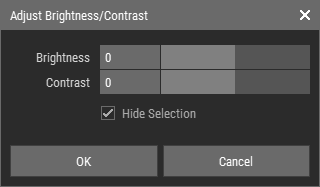
  3. Adjust the parameters in the Adjust Brightness/Contrast dialog.
  4. Click OK to apply the changes.

Note

Foxel uses indexed color, meaning that the calculated new colors are matched with the active color palette to find the closest color representation.

Adjust Brightness/Contrast Dialog Parameters

Adjust Brightness/Contrast Dialog

  • Brightness: Shifts the overall lightness of the colors in the voxel grid; increasing brightness makes the colors lighter, while decreasing it makes them darker.
  • Contrast: Adjusts the difference between the lightest and darkest areas of the voxel grid; increasing contrast enhances the distinction between colors, while decreasing it can create a flatter appearance.
  • Hide Selection: Enable this option to toggle the highlighting of selected voxels, which can enhance your ability to visualize the changes more effectively.