Asset Export Settings
The Asset Export Settings in Foxel allow you to customize how your voxel assets are exported. This section will guide you through accessing the settings, creating and managing export profiles, and understanding the various options available.
Accessing Export Settings
To access the Asset Export Settings, follow these steps:
- Open the File menu in the top navigation bar.
- Click the rectangle button next to Export.
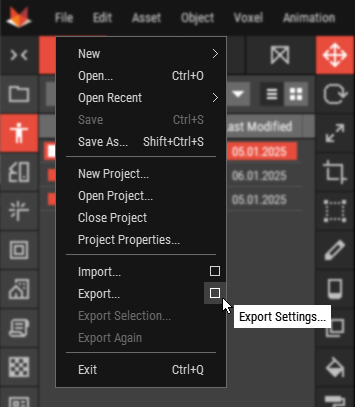
This action will open the Export Settings dialog, where you can configure your export preferences.
Export Settings Overview
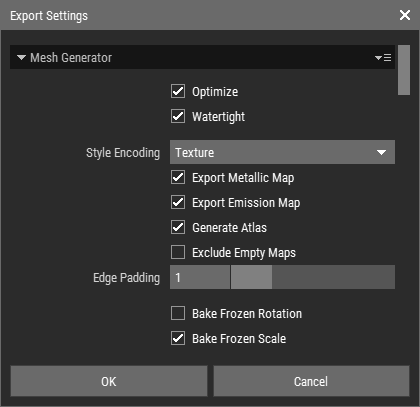
The Export Settings dialog contains several options that allow you to customize the export process for your voxel assets. Below is a detailed explanation of each setting:
Mesh Export Settings
- Optimize: This option optimizes the mesh for better performance and reduced file size.
- Watertight: Ensures that the exported mesh is watertight, meaning there are no holes or gaps in the geometry.
- Encoding: Choose between two options:
- Texture: All color and PBR material data is encoded in textures. Note that when this option is selected, an albedo map is generated, storing color and alpha information.
- Vertex Color: Color is encoded per vertex, while PBR material data is excluded.
- Generate Metallic Map: Creates a metallic map for the asset, which defines the metallic and roughness properties of the surface.
- Generate Emission Map: Produces an emission map that specifies which parts of the asset emit light.
- Generate Texture Atlas: Combines multiple textures into a single texture atlas to optimize rendering.
- Exclude Empty Maps: Prevents the export of any maps that do not contain data.
- Edge Padding: Adds padding around the edges of textures to prevent bleeding during rendering.
- Bake Frozen Rotation/Scaling: Foxel allows you to freeze transformations. If the rotation or scale of an object is frozen, this option bakes the frozen rotation (or scale) into the mesh.
- Bake Pivot: Custom pivot points can be set per object. This option bakes the pivot point into the mesh, meaning the mesh originates at that point.
- Export Keyframes: Includes keyframe animation data in the export.
- Bake Key Every: Specifies the interval at which keyframes should be baked if need.
- Exclude Cap: Caps can be omitted per face (left, right, top, bottom, front, back). For example, if "Exclude Bottom" is checked, then the bottom geometry for all voxels that are at the bottom of the voxel grid (y = 0) will be omitted, while all other bottom geometry will remain.
- Generate LOD Files: Creates Level of Detail (LOD) files for the asset, allowing for different levels of detail based on distance from the camera.
- Postfixes: Allows you to specify the postfixes added to the end of filenames.
Creating and Managing Export Profiles
Foxel allows you to create multiple export settings profiles for different export scenarios. To manage your profiles, navigate to the Profiles Panel and open the Export Settings Profiles tab. Here, you can create new profiles, activate a profile to use for export, and edit or delete existing profiles as needed.