Asset Import Settings
The Asset Import Settings in Foxel allow you to customize how voxel file, mesh assets and images are imported. This section will guide you through accessing the settings, creating and managing import profiles, and understanding the various options available.
Accessing Import Settings
To access the Asset Import Settings, follow these steps:
- Open the File menu in the top navigation bar.
- Click the rectangle button next to Import.
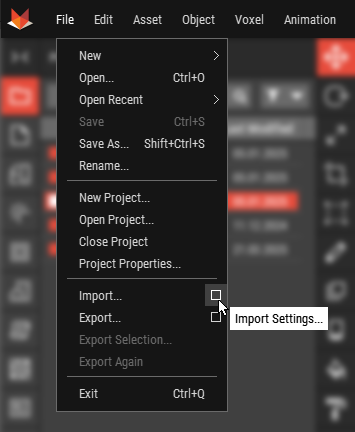
This action will open the Import Settings dialog, where you can configure your import preferences.
Creating and Managing Import Profiles
Foxel allows you to create multiple import settings profiles for different import scenarios. To manage your profiles, navigate to the Profiles Panel and open the Import Settings Profiles tab. Here, you can create new profiles, activate a profile to use for import, and edit or delete existing profiles as needed.
Import Settings Overview
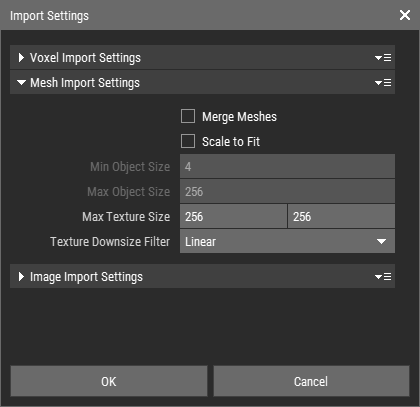
The Import Settings dialog contains several options that allow you to customize the import process for voxel files, mesh assets and images. Below is a detailed explanation of each setting:
Voxel Import Settings
- Max Voxel Layer Size: Defines the maximum size (X/Y/Z) for created Voxel Layers. If the imported object exceeds this size, it will be cut into chunks.
- Group Chunks: If the object is chunked, this option allows you to group the chunks together for easier management.
Mesh Import Settings
- Merge Meshes: Combines multiple meshes into a single mesh during the import process.
- Scale to Fit: When enabled, this option scales the imported object to fit within the defined minimum and maximum size constraints.
- Min/Max Object Size: Sets the minimum and maximum bounds for the Scale to Fit operation.
- Max Texture Size: Sets the maximum allowable size for textures during import.
- Texture Downsize Filter: Choose between two options for downsampling textures that exceed the maximum size:
- Linear: Applies linear filtering for smoother results.
- Nearest Neighbor: Uses nearest neighbor filtering for a more pixelated effect.
Image Import Settings
- Max Pixel Layer Size: Specifies the maximum size for the created Pixel Layers when converting images.
- Oversized Images: Select how to handle images that exceed the maximum Pixel Layer size. Options include:
- Downsize (Linear): Downsizes the image using linear filtering.
- Downsize (Nearest Neighbor): Downsizes the image using nearest neighbor filtering.
- Crop: Crops the image to fit within the specified size.
By configuring these settings, you can tailor the import process to meet your specific requirements, ensuring that your assets are optimized for their intended use.