Assets Panel
The Assets Panel is located in the Left Sidebar of the Foxel workspace and serves as a central hub for managing the assets of the currently open project. Assets are the fundamental components that enable users to create, manipulate, and animate voxel-based environments.
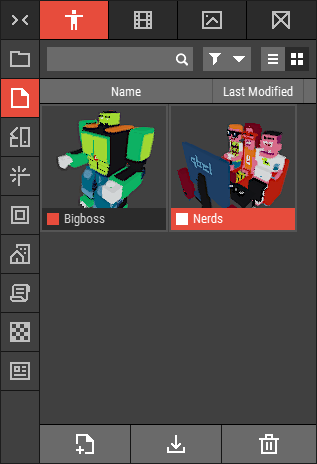 🔺 Figure 1: The Assets Panel.
Asset Types
This panel features four tabs, each dedicated to a specific asset type.

From left to right these are: Voxel Scene, Voxel Movie, Heightmap, and Mesh Asset.
Voxel Scene: The foundation of your voxel creations, Voxel Scenes are animated environments that serve as the primary canvas for your projects, allowing for intricate designs and dynamic animations.
Voxel Movie: These assets display a sequence of voxel models, creating a captivating visual experience. Voxel Movies are ideal for showcasing frame-by-frame animations within your scenes.
Heightmap: Unique 2D assets that contain pixel data and height information, Heightmaps can be converted into 3D voxel data, enabling the creation of terrains and landscapes.
Mesh Asset: Imported from external mesh files, Mesh Assets can be integrated into your voxel projects and voxelized, allowing them to blend seamlessly into Voxel Scenes.
Features
Create New Asset: Easily start a new asset by clicking the New Asset button. You will be prompted to enter a name and other relevant details. For more information, see Creating Assets.
Open Existing Assets: All previously created assets are listed in this panel. Double-click on an asset to open it and continue your work. For more information, see Opening Assets.
Manage Assets: You can rename, delete, or duplicate assets directly from this panel. Duplicating assets allows you to create copies for different purposes or iterations. For more information, see Working with Files.
Import and Export Assets: The Assets Panel allows you to import and export various asset types, facilitating easy sharing and integration of your work. For more information, see Importing Assets and Exporting Assets.