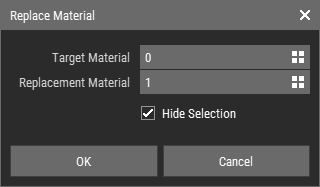
Replace Material
The Replace Material operation allows users to change specific materials applied to voxels within a voxel grid. This feature is essential for modifying the surface properties of voxel models, enabling users to achieve desired visual effects and enhance the overall appearance of their creations.
Steps to Apply Replace Material
- Select voxels or Voxel Layers.
- Navigate to Voxel > Filter > Replace Material.
- In the Replace Material dialog, confirm the target material you wish to replace and specify the new replacement material.
- Click OK to apply the changes.
Note
Foxel utilizes indexed materials, ensuring that the target material is accurately matched with the active material set during the replacement process.
Hint
Using the Eyedropper Tool to select a material before calling the operation can streamline the process, as the target material will be automatically set to the active material when the dialog opens.
Replace Material Dialog Parameters

- Target Material: The material currently applied to the voxels that you wish to replace.
- Replacement Material: The new material that will take the place of the target material in the voxel grid.
- Hide Selection: Enable this option to toggle the highlighting of selected voxels, which can help you visualize the changes more effectively.