Color Ribbon
The Color Ribbon is an essential feature located below the timeline at the bottom of the Foxel workspace. It provides a visual representation of the colors used in your open project, allowing for quick and efficient color selection during modeling.
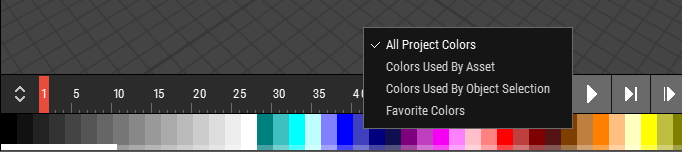 🔺 Figure 1: Shows the Color Ribbon along with the context menu for changing filter modes.
Features
Quick Color Selection: Click on any color in the ribbon to select it for your modeling tasks. This feature streamlines the process of applying colors to your assets and objects.
Color Filtering: The Color Ribbon allows you to filter the displayed colors based on different criteria. The available filter modes include:
- All Project Colors: Displays all colors used in the project without any filters applied.
- Colors Used by Asset: Shows only the colors that are utilized by the currently selected asset. This is particularly useful when you want to use a subset of colors for the current asset and for new objects you plan to create within that asset.
- Colors Used by Selected Objects: Filters the colors to display only those used by the objects currently selected in the scene. This mode limits the color options even further, showing only the colors that the selected objects use, which helps in maintaining consistency in your modeling.
- Favorite Colors: Displays a curated list of your favorite colors for quick access. Favorites can be managed through the color panel.
Changing Filters
To change the filter mode, right-click on the Color Ribbon. A context menu will appear, allowing you to select your desired filter. The selected filter will also be applied to the Colors tab in the left sidebar, ensuring consistency across your workspace.
Interacting with the Color Ribbon
- Select a Color: Simply click on a color swatch to select it for your current modeling task.
- Edit Color Palette: Double-click on the Color Ribbon to open the color palette editor, where you can modify your color selections.
- Scroll Through Colors: If the list of colors exceeds the visible area, you can drag the ribbon horizontally to scroll through the available colors.