Resizing (Pixel)
The Resize operation allows you to adjust the dimensions of both Pixel Layers and Heightmaps assets.
INFO
Pixel References cannot be resized.
Steps to Resize Pixel Layers
- Select one or more Pixel Layers.
- Navigate to Pixel > Transform > Resize.
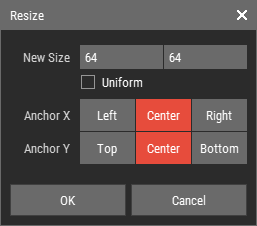
- Adjust resize parameters in the Resize Dialog.
- Click OK to resize the pixel grid.
Note
The Resize operation always affects the entire pixel grid and ignores pixel selections.
Important Note
Due to Foxel's automatic optimization feature, the Resize function can only be used to decrease the size of the pixel grid. Foxel automatically optimizes grid sizes by cropping empty areas and extending the grid when new pixels are drawn.
Steps to Resize Heightmaps
- Open the Heightmap asset you wish to resize.
- Navigate to Asset > Resize.
- Adjust the resize parameters in the Resize Dialog.
- Click OK to apply the new size to the Heightmap.
Note
When you resize a Heightmap, the contained pixel grids remain unchanged. However, resizing the Heightmap asset will affect the dimensions of the voxel grid generated from it (see Introduction to Pixel Modeling).
Resize Dialog Parameters

- New Size: Enter the new dimensions for the Pixel Layer or Heightmap.
- Uniform: Check this option to maintain the aspect ratio while resizing.
- Anchor X/Y: The six anchor buttons determine the point from which the resize occurs, organized by axis.