Profiles Panel
The Profiles Panel is located in the Left Sidebar of the Foxel workspace. This panel is used to create, edit, and manage various profiles that help streamline your workflow.
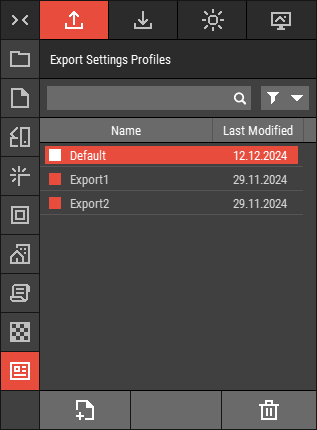 🔺 Figure 1 The Profiles Panel.
Export Settings Profiles Tab
The Export Settings Profiles Tab is used to manage settings profiles for asset export. These profiles help ensure that your assets are exported with the desired settings. For more information, see Shared Export Settings Profiles.
Import Settings Profiles Tab
The Import Settings Profiles Tab is used to manage settings profiles specifically for asset import. These profiles allow you to define how assets are imported into your projects. For more information, see Shared Import Settings Profiles.
Environmental Settings Profiles Tab
The Environmental Settings Profiles Tab allows you to load profiles that can be utilized by cameras for easy initialization of environmental settings. For more information, see Shared Environmental Settings Profiles.
Render Effects Settings Tab
The Render Effects Settings Tab is used to manage profiles that can be loaded by cameras to apply specific render effects. For more information, see Shared Render Effects Profiles.
Common Features
Create Profile: Click the New button to create a new profile.
Edit Profile: To edit an existing profile, double-click on its name.
Activate Profile: Select a profile, right-click, and choose Activate from the context menu to apply the profile settings.
Manage Profiles: You can rename, delete, or duplicate profiles directly from this panel. For more information, see Working with Files.