Creating Assets
This section explains how to create a new asset in the application.
Steps to Create a New Asset
- Navigate to File > New Asset and choose an asset type from the subemu.
- (Optional) Fill in the fields in the New Asset dialog.
- Click OK to create and open the asset file.
New Asset Dialog Parameters
The New Asset dialog allows you to name your new asset and provide optional metadata.
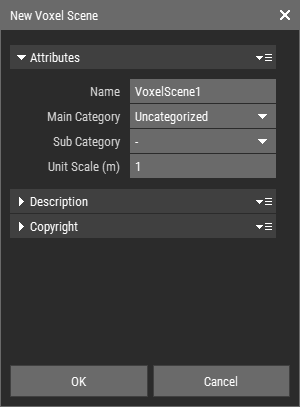 🔺 Figure 1: New Asset Dialog.
Attribute Parameters
| Name | Enter the desired name for your new asset. Names must be unique, so the actual name may differ. For more details, see Naming Rules. |
| Main category and subcategory | Use these two drop-down menus to select a category for your new asset. You can filter assets by category in the Assets Panel. |
| Unit scale | This setting defines the size of a unit. For example, if you set the unit scale to 0.1 in the metric system, a voxel will measure 0.1m (10cm). |
| Size | Only Heightmaps have an additional size property, which indicates the dimensions of the Heightmap in pixels. |
Description and Copyright Parameters
In the Description and Copyright sections, you can provide additional information about the asset. This information does not affect the asset's functionality and can be used to generate an HTML page. It is also automatically included in Prefabs created from the asset.
All copyright fields are pre-filled with the copyright information from your active project. For more details, see Project Properties.