Workspace Overview
The Workspace in Foxel is designed to provide a comprehensive environment for managing your voxel projects. It consists of various panels and tools that facilitate the creation and manipulation of voxel art. Below is an overview of the key components of the workspace.
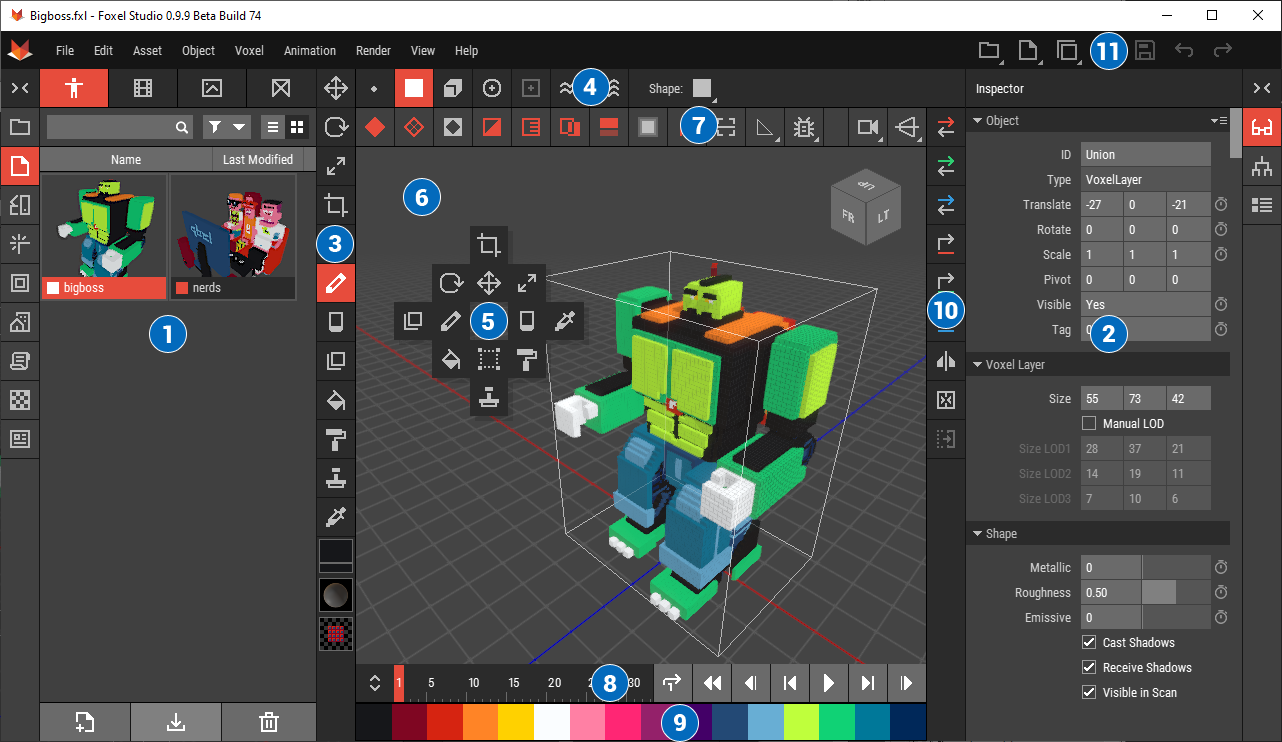 🔺 Figure 1: The Foxel interface.
Key Components
The numbered headings below correspond to the numbered interface elements in Figure 1.
- Left Sidebar: Contains panels to manage all project files and shared files.
- Right Sidebar: Includes the Inspector Panel for viewing and editing properties of selected objects, and the Hierarchy Panel for managing the structure of your scene.
- Toolbar: Quick access to essential tools for creating and editing.
- Tool Options Bar: Displays options specific to the currently selected tool.
- Toolbox: Functions like a tool wheel, listing the same tools available in the toolbar for easy access.
- Scene View: The main area where you can visualize and edit your voxel creations.
- View Options Bar: Customize how you view your scene, including grid settings and camera angles.
- Timeline: Manage animations and keyframes for your projects.
- Color Ribbon: Quickly select colors for your voxel art.
- Action Bar: Access frequently used actions and commands.
- Quick Access Panel: Used to quickly open projects and assets, as well as to activate objects in the current scene.
Additional Topics
Working with Files: This section covers how to create, open, and manage your project files and shared files. Learn about file formats, organization, and best practices for keeping your files organized.
Saving Your Work: Discover the various methods for saving your projects, including auto-save features and manual save options. Understand the importance of regularly saving your work to prevent data loss.
Preferences: Customize your Foxel experience by adjusting application settings. This section explains how to modify preferences related to the interface, performance, and other user-specific options.
Default Shortcuts: Familiarize yourself with the default keyboard shortcuts available in Foxel. This guide will help you navigate the application more efficiently and improve your workflow.
Customizing Shortcuts: Learn how to tailor keyboard shortcuts to fit your personal workflow. This section provides step-by-step instructions on modifying existing shortcuts or creating new ones to enhance your productivity.